Step 1: Creating an account
- Enter the following URL into the address bar as it appears: square.paycompass.com
- The home screen invites sales agents to create an account. See image below.
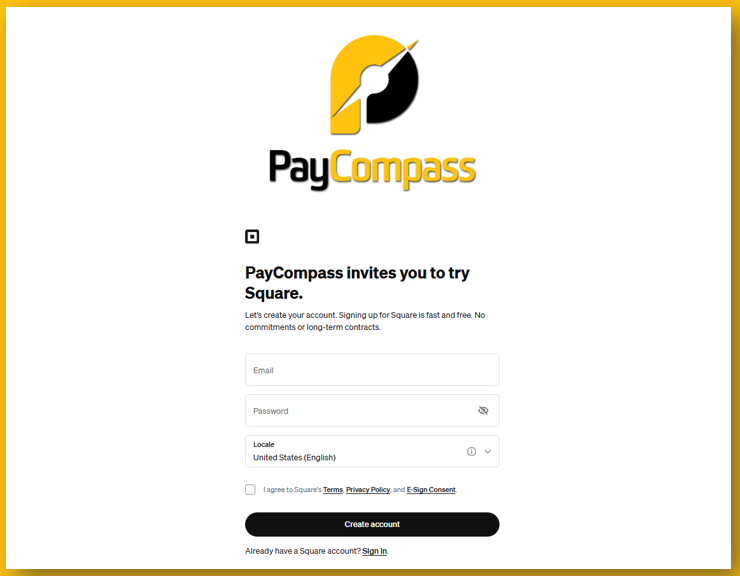
- Sales agents will enter the email address of their choice (their PayCompass email, their individual ISO email, or personal email) and they will create a unique password for their own Square account. IMPORTANT! The email that the sales agent utilizes will be the email associated with their submissions. Please make this clear to all agents that are creating Square accounts.
- After entering the email address and password, the sales agent will check the box to accept Square's terms, privacy policy, and E-Sign Consent.
- Once the box has been checked, the sales agent will click "Create Account."
Step 2: Business information
- The following screen will prompt the user to provide information regarding their business. See image below.
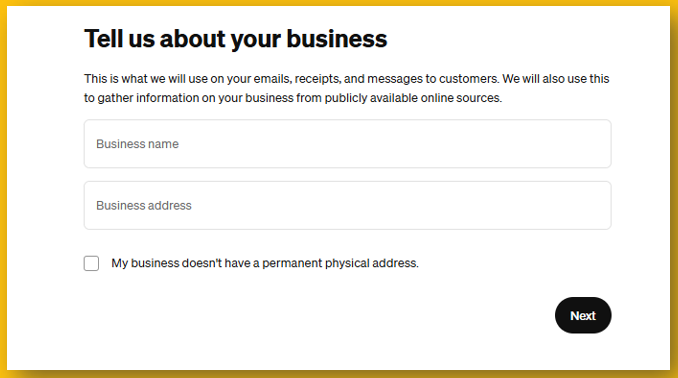
- Sales agents can enter whatever business name they choose whereas it's their own personal account that they will be utilizing for merchant demos.
Step 3: Select the business type
- The following screen will ask the sales agent to best describe their business type. Agents can choose from any of the options available whereas this is their own personal account.
Step 4: Annual Revenue
- The following screen will ask the sales agent to provide the annual revenue. Agents can choose from any of the options available whereas this is their own personal account.
Step 5: Finish setup
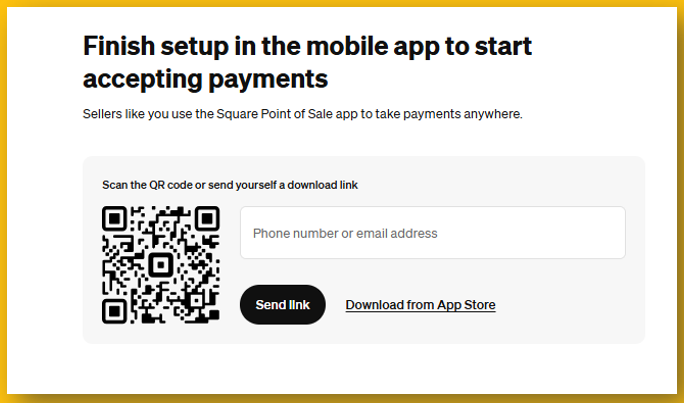
- Users can either scan the QR Code to download the Square app OR users can enter either their cell number or email address to receive a link to download the Square app. See image below.
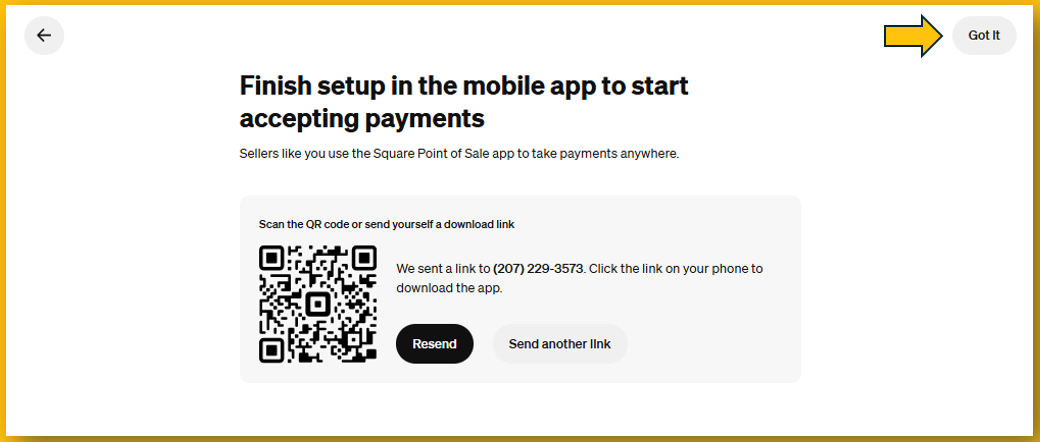
- Once the user has selected an option to download the app, the user will click the "Got it" button at the top right of the screen. See image below.