Link - Step by step instructions from Square website -> Setting up a Square Account
When you add a new application in Navigo you'll see this page under Square ...
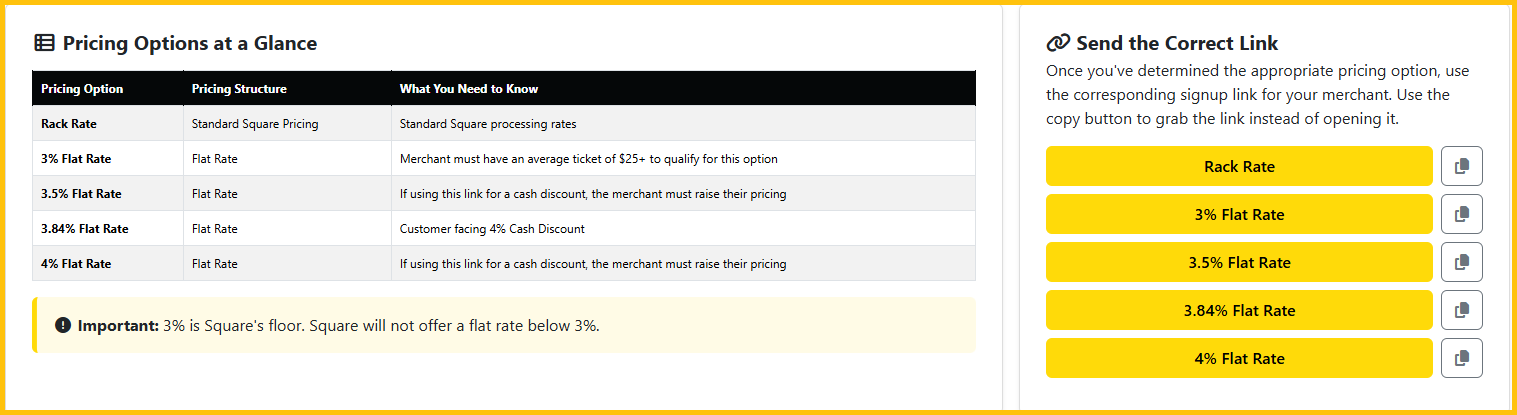
Enter the appropriate URL into the address bar depending on which program you are interested in.
- Square Rack Rates: square.paycompass.com (Free, Plus, Premium)
- Square 4% Cash Discount Program: https://app.squareup.com/signup/en-us?signup_token=FAD9383F85 (flat rate, manually applied Cash Discount)
- Square 3% Flat Rate: https://app.squareup.com/signup/en-us?signup_token=5FD1ABB2EC
- Square 3.5% Flat Rate: https://app.squareup.com/signup/en-us?signup_token=EC0A41D848
- Square 3.84% Flat Rate: https://app.squareup.com/signup/en-us?signup_token=B7EF675A65
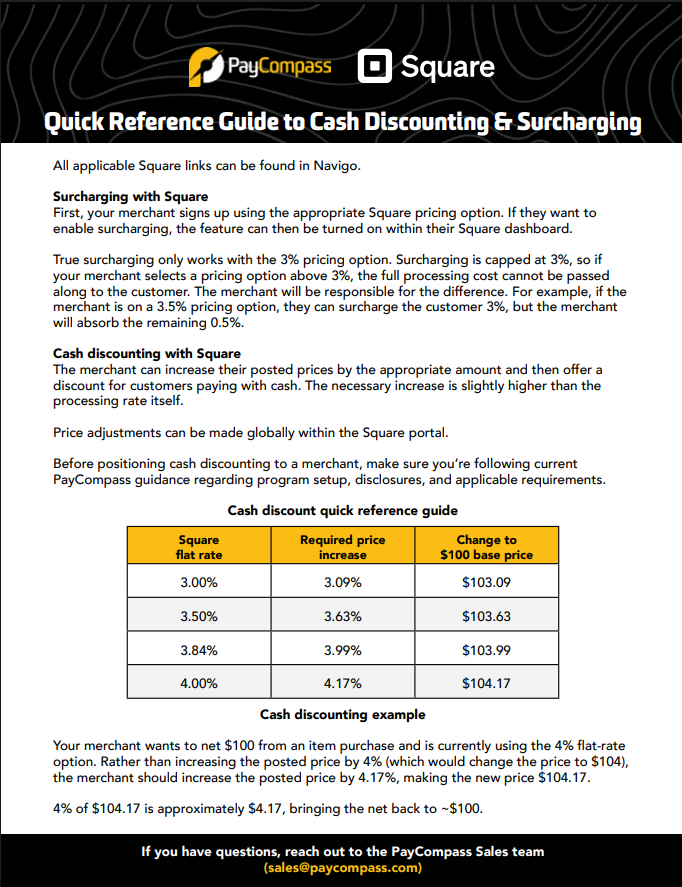
Step 1: Creating the PROPER account
- The home screen invites merchants to create an account. See image below.
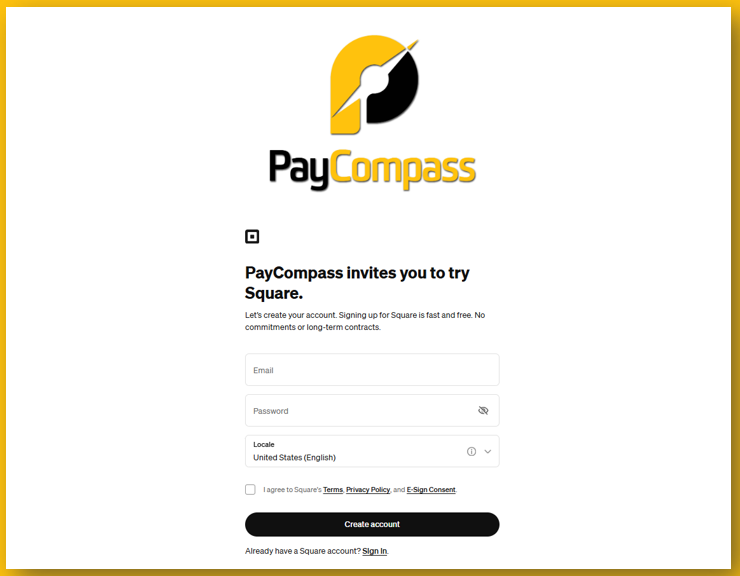
- Merchants will enter their email address and create a unique password for their Square account.
- After entering the email address and password, the merchant will check the box to accept Square's terms, privacy policy, and E-Sign Consent.
- Once the box has been checked, the merchant will click "Create Account."
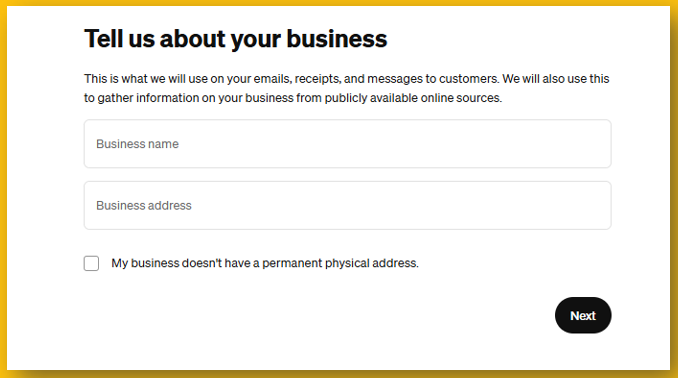
Step 2: Business information
- The following screen will prompt the merchant to provide their business name and address. See image below.
Step 3: Select the business type
The following screen will ask the merchant to best describe their business type. Below is the complete list of businesses that the merchant can choose from.
- Marketing/Advertising
- Consulting
- Electronics
- Software Development
- Clothing and Accessories
- Events/Festivals
- Specialty Shop
- Accounting
- Convenience Store
- Real Estate
- Charitable Organization
- Taxi
- Computers/Electronics/Appliances
- Food Truck/Cart
- Limousine
- Design Other
- Notary Services
- Outdoor Markets
- Legal Services
- Music
Step 4: Annual Revenue
The following screen will ask the merchant to provide their annual revenue. Below is the complete list of businesses that the merchant can choose from.
- Less than $100K
- $100K-$250K
- $250K-$1M
- $1M-$5M
- $5M-$25M
- Not sure yet - If you're a new business, or don't know right now
Step 5: Finish setup
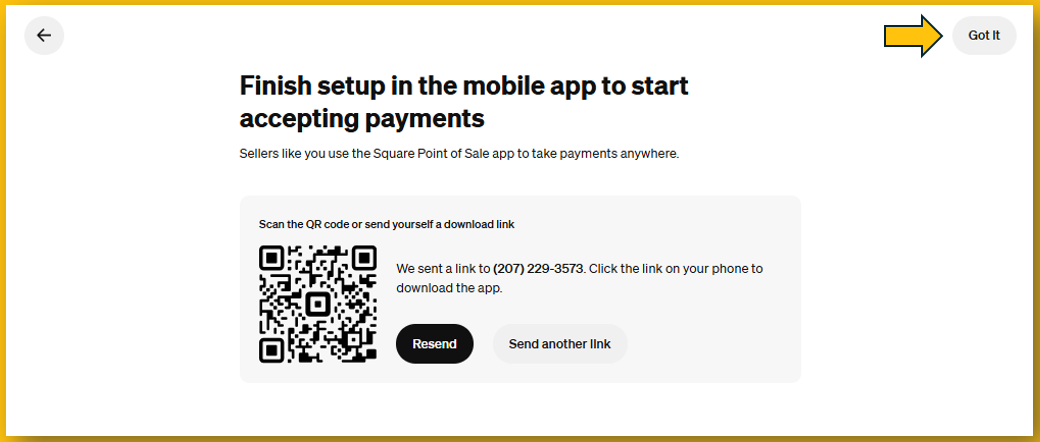
- Merchants can either scan the QR Code to download the Square app OR merchants can enter either their cell number or email address to receive a link to download the Square app. See image below.
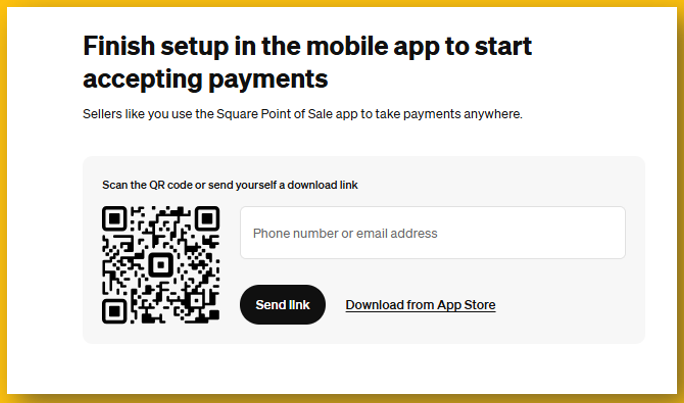
- Once the merchant has selected an option to download the app, the user will click the "Got it" button at the top right of the screen. See image below.