
Clover Adds Sub-Categories
Subcategory Specifics: 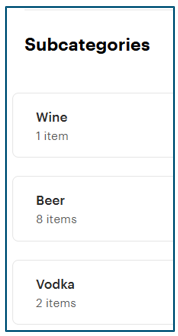
- Subcategories help you organize your inventory for better customization and easier navigation. They appear only on POS devices, not on customer facing channels, such as kiosks or online ordering.
- Subcategories are optional and belong to only one parent category. You can create up to 50 subcategories per category, and each subcategory can contain up to 4,000 items.
- You can assign items to BOTH the parent category and one or more subcategories within it. You can add items to a subcategory by creating them directly in it or by moving them from the parent category. If you delete a subcategory, its items are automatically reassigned to the parent category. If you delete the parent category, all of its subcategories are deleted as well.
Subcategory Setup:
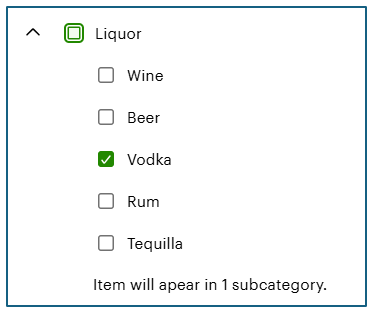
Setup Sub-Categories from the Portal. You can assign to Sub-Categories from the item screen, or using the Bulk Edit tool. Both will show you a list of categories to choose from, and any categories that have sub-categories will show with a down-arrow symbol. Tap that and the sub-categories will appear.
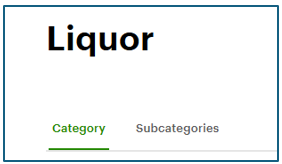
Setup Sub-Categories with import file: Sub-Categories are supported in the v2 import file template under Items & Categories.
On the Items Tab: the a parent category or Sub-Category is associated with each Sales Item. Sales reports list items in this listed item category.
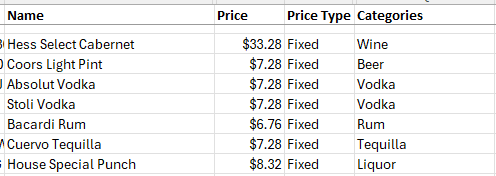
<< Notice Sub-Categories are attached to each sales item on the Items Tab!
<< Parent Categories can also have items assigned in addition to sub-categories!
On the Categories Tab: There is a new column for sub-categories that nest within the parent category. Sub-categories are listed below the parent category indented and are separated from the parent items (or other sub-category items) by a blank line.
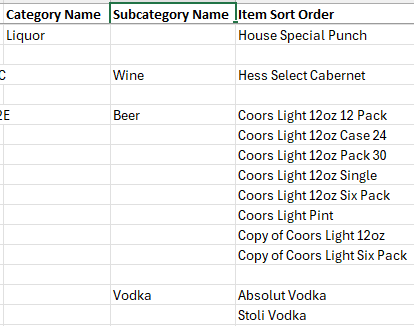
Parent Category (and items) >>
(blank line between)
Sub-Category Name (and items) >>
Subcategory Use:
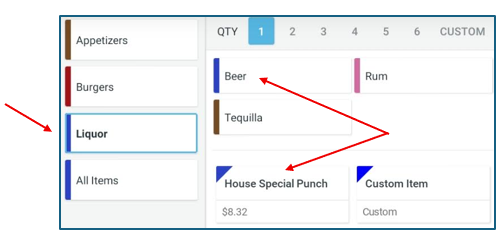
Main Categories show normally down the center of the POS screen. Notice that sales items and sub-categories can coexist - perfect to highlight most popular items.
Touching a sub-category will show it's contents.
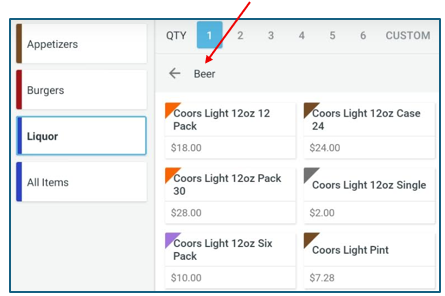
Tapping Beer shows the items in that subcategory.
Once in a subcategory its name is shown up top with a back arrow to return to its main category.
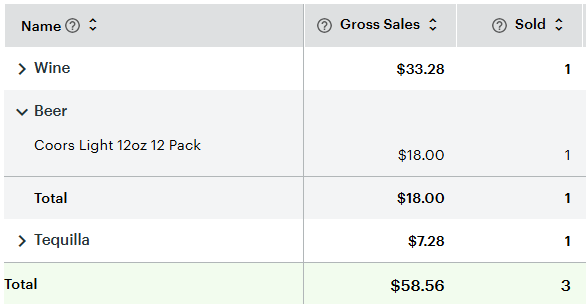
Sales are reported by the category. Sub-categories are represented just like regular categories for reporting purposes. Kiosk and Online Ordering do not show sub-categories, but instead present them as regular categories.
02/13/2026