
How to setup Order Discounts App
(for Cash Discounting on Clover Devices)
? Purpose:
The Order Discounts App ($1.99) is an inexpensive and reliable solution for implementing Cash Discounting on Clover. It support dual pricing on both the final receipt and guest check, dual prices on the customer-facing screen, and the ability to exclude certain items, variable priced items, custom items, and gift cards from the discount or increase. There is also a report that shows total cash discounts provided in a custom time range.
? Alternative:
The Cash Discount Professional App ($9.99) offers a wider variety of features (100+) including 10 cash discount methods, EBT, charity round-up, dual-priced itemized receipts and guest checks, dual-priced label creation, cash discount by seat/guest, and even a server tip report by the person opening the check, so this is perfect for restaurants that use a cashier for payments. (Clover ties the tip to the person paying the order). CDPro now offers remote prep printer support for the Clover Essentials SaaS plan (+$10) helping smaller merchants avoid the $90 Growth Plan (NOTE: Essentials offers no online ordering, per-unit pricing, or order types!)
✔️ Procedure:
- Login to a Clover device as an Admin or Owner
- Go to the home screen and tap App Market
- Tap the search icon (top right) and enter Order Discounts
- Tap Download, install when prompted, then open the App
- Note: The App defaults to 'Discounts', choose Cash Discount instead (bottom center)
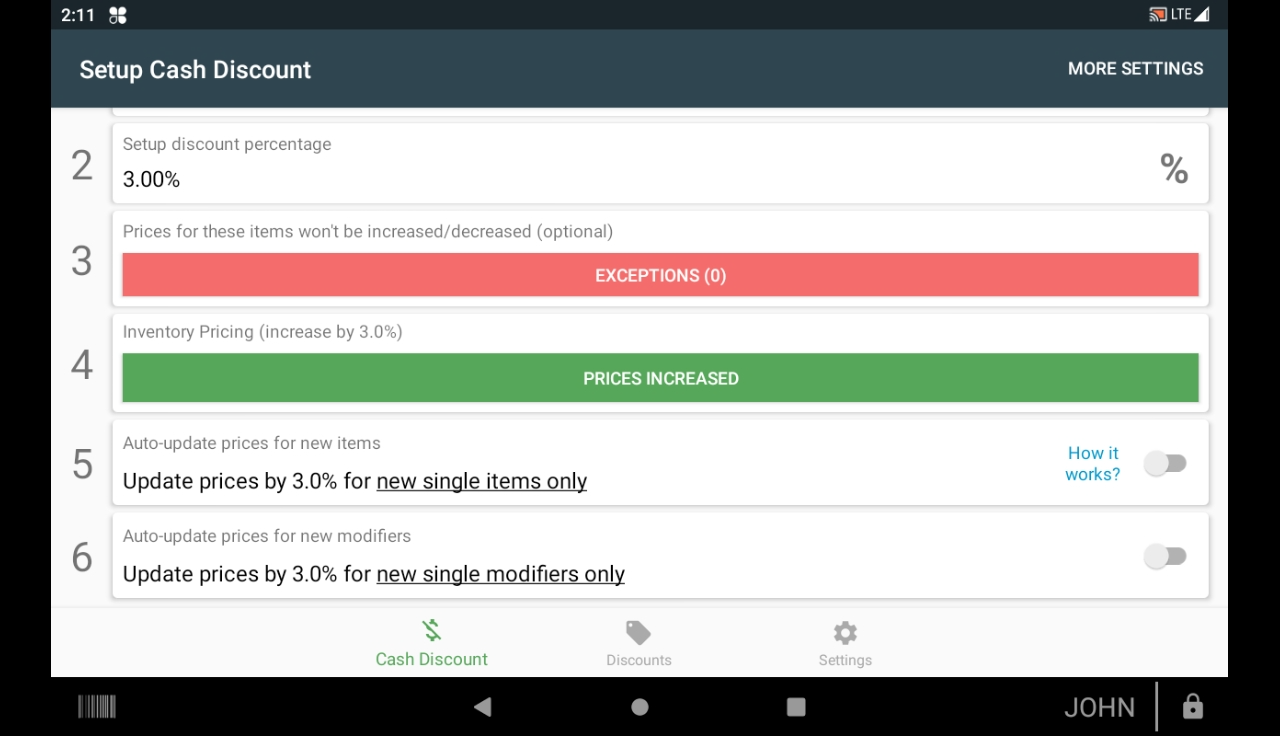
- Follow the numbered steps
- Enable Cash Discount
- Enter the Cash Discount Percentage
- Skip Exceptions (unless there are certain items that do not receive a Cash Discount)
- Tap Increase Prices
- Choose 'Increase Prices' if your current prices are the cash prices
- Choose 'My Prices are Increased' if your prices already include the increase
- Confirm your choice
- Enable both 5a and 5b to increase existing and future item prices (if cash price is entered)
- Enable both 6a and 6b to increase existing and future modifier prices (if cash price is entered)
- Tap 7 to see additional settings
- This setting allows the merchant to add dual prices to guest checks (unpaid)
- This setting allows merchant to add dual prices to paid receipts
- Adding a 0% cash discount to card payment receipts is recommended
- Leave Gift cards increase the prices of Gift Card amounts (recommended)
- Enable 12 and 12.1 if your variable and custom items prices are entered as the higher card price
- Enable 13 to show dual prices on the customer facing screen
- It is not recommended that you disable the cash/card pop-up
- Enable this to ensure that discounts are properly calculated
- (beta) a new tool that can increase 'imported' item prices
- Time to Test!
- Open the inventory app and see if you item prices are raised by your cash discount %
- Open Register and ring up one of those items. You should see it listed at the higher amount
- Tap 'Pay' and verify that the cash/card popup appears.
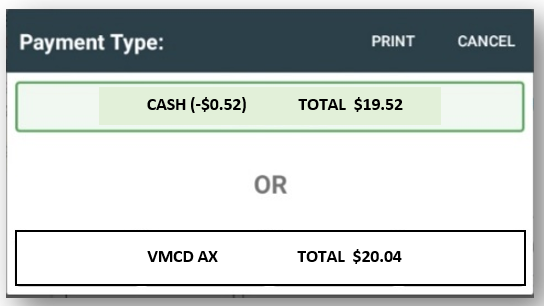
- Tap cash and verify that a cash discount was applied to your order
NOTE: If prices are higher in Inventory, but don't show up increased, close and restart the Register App. Tap the square Android icon on the bottom of the screen, location the Register card and tap the X in the upper right corner. Tap the home screen button and open Register to try again.
? Additional Resources:
- Order Discounts Setup Video
- Payplaxe Support Email: contact@payplaxe.com
- Cash Discount Professional Setup Video