Device User Interface Differences for the Genie App
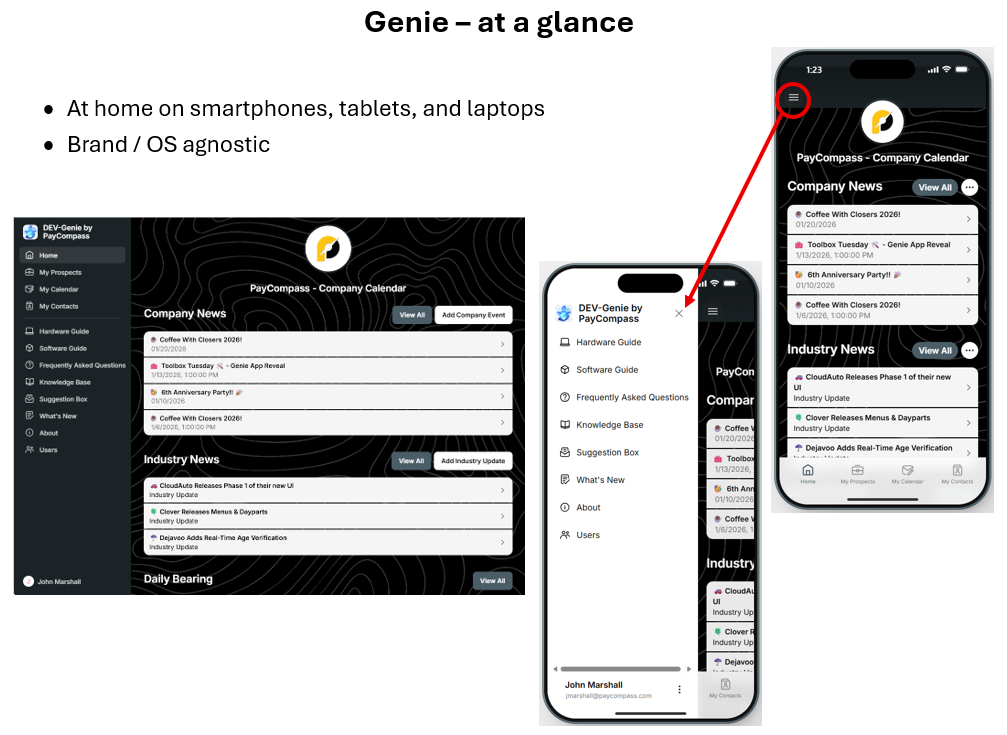
The vertical and horizontal configuration of phones, tablets, and laptops change the App UI slightly.
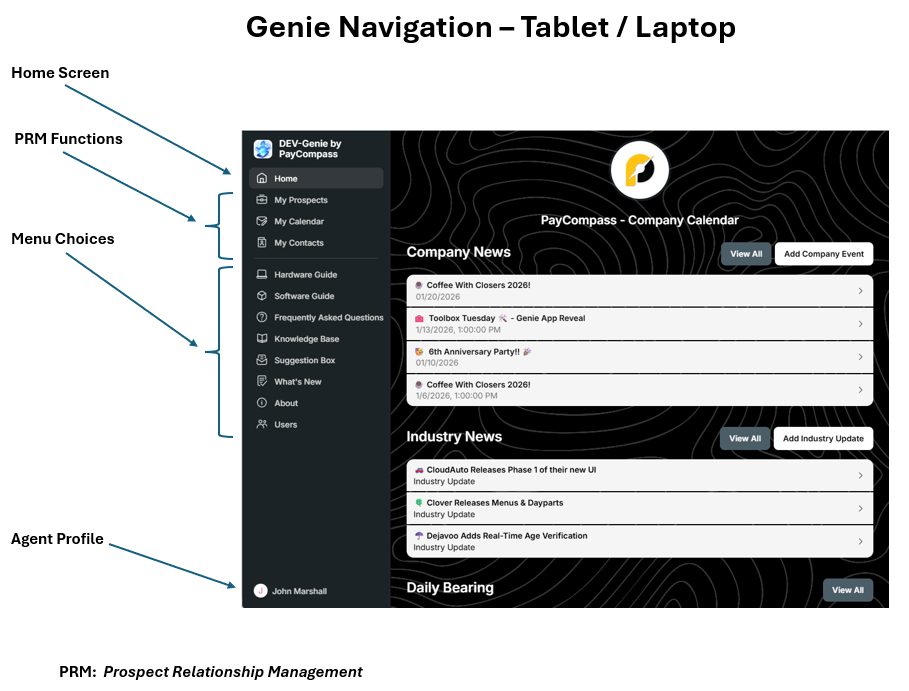
The nav bar (left) remains visible on tablets and laptops, but it must be tapped open on phones.
Genie Navigation and Check-In
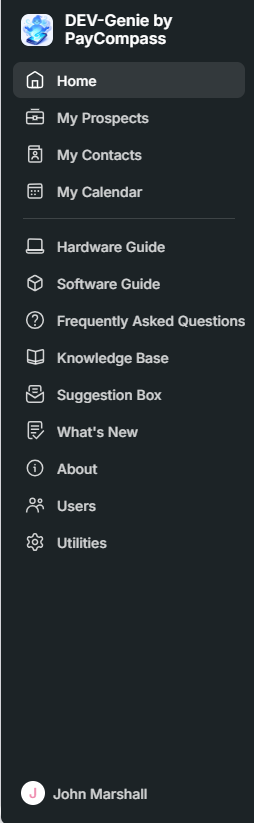
Navigation is broken into three areas:
- Prospect Relation Management,
- Company Reference Materials, and
- Your User profile.
and, at the beginning of each day, you will be greeted by a welcome message that will show a summary of activity since your last day.
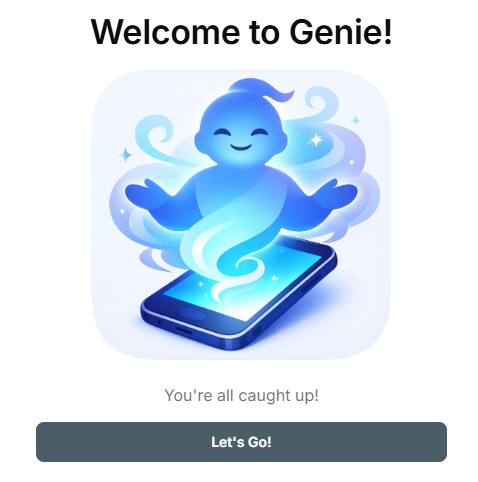
Let's Go!
Let's look at each user experience
Tablet / Laptop
When using tablets and laptops, all navigation remains visible including Prospect Management (PRM).
Phone
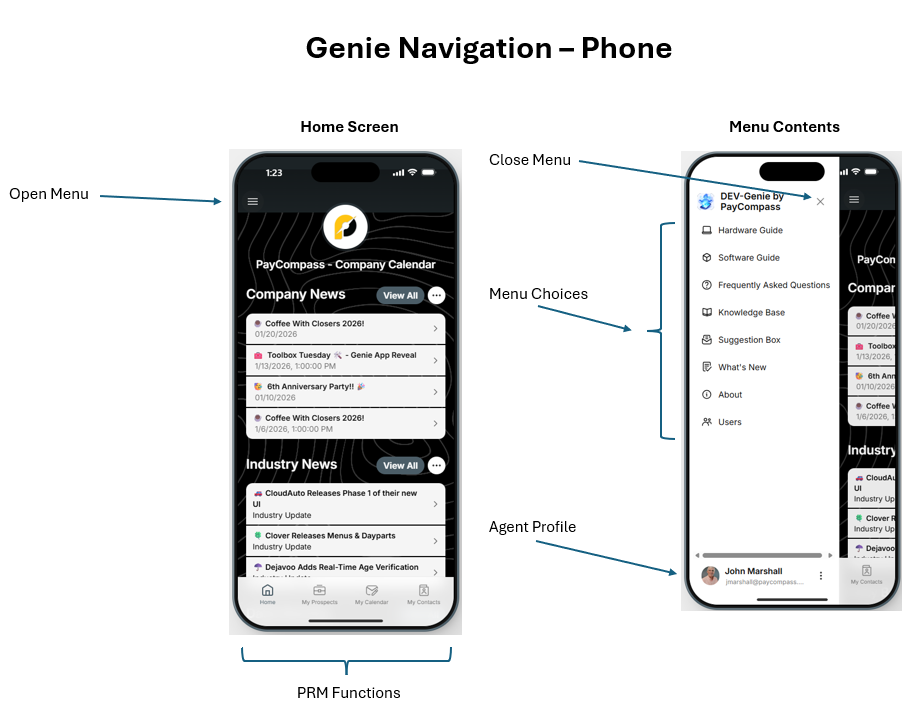
The vertical orientation and size of the phone screen changes the navigation slightly. The 'Hamburger' menu button in the upper-left corner is tapped to slide-in the Company Reference materials and User Profile. Tapping either the X or the Hamburger menu icon again closes the menu.
Notice however that the PRM functions remain visible on the bottom of the home screen. This is by design as you will likely interact with these features frequently throughout your day.