
Summary: Both Valor and DejaVoo offer QuickBooks integrations for Terminal transactions (recording only), VT (recording or invoice matching), and VT pushing to a terminal (recording or invoice matching). Valor VT takes it one step farther by Syncing QB sales items and offering CEDP Qualification.

QuickBooks Integrations Decoded
- Valor vs DejaVoo -
Current QB Rates: Invoices, recurring - 3%, ACH - 1%, Keyed - 3.5%
QB does NOT support Surcharge or Dual Pricing
QuickBooks Integrations Decoded:
One-Way (Push) Sync without invoice matching -
- Merchants that process most of their transactions at the counter or with a Virtual Terminal and wish to push these transactions to QuickBooks using a terminal generated invoice number. (DejaVoo, Valor)
- DejaVoo Pay-Links can be embedded within a QuickBooks 'Invoice Template' (see instructions below), however DejaVoo payments must be manually matched to the invoice. (DejaVoo)
One-Way (Push) Sync with matching -
- A Valor QB Email Invoice Paylink will auto-generate a unique pay-link for each sales order which contains the customer name and invoice number for auto-matching. This can be embedded within a QB 'Invoice Template' (see instructions below). Valor pay-links also support Surcharging and Dual Pricing (with or without ACH) for card not present. (Valor)
- Valor and DejaVoo Virtual Terminals can match invoices when customer name and invoice number are pre-entered. Both sync data from QB and present them in a pull-down list. (DejaVoo, Valor)
- A Valor standalone Terminal (card present) can prompt for Customer Name and Invoice Number on the Pinpad to match an existing Invoice in QuickBooks. (Valor)
- Virtual Terminal Card Present is supported by both Valor and DejaVoo Terminals. Both require an invoice number and Customer to be selected in the VT which is then pushed to a terminal. (DejaVoo, Valor)
Surcharge and Dual Price Fee Reconciliations in QuickBooks -
- Both Valor and DejaVoo QuickBooks setting allow for the inclusion of added fees or leaving those off when pushing payments to QB.
- When QuickBooks invoices are based on cash prices, pushing fees would apply a payment amount in excess of the invoice total. It is therefore advised that you set payments to only send the base amount.
- When using Daily Net funding and the merchant fees (discount rate is correct), the bank deposit should match the invoice totals for the previous day (depending on funding timing).
- When using Daily Split funding a monthly journal entry will be needed. The simplest way to solve this is to run a monthly added fees report and use that in a QB journal entry:
Account Debit($) Credit($)
Checking (bank) 1,200
Card Fees Recovered (income/contra) 1,200
- The effect is that the Bank in QB increases by 1,200 so it matches the actual batch deposits. The increase in fee revenue (card-fee contra account) acts as a negative offset to the card-fee expense.
Two-Way Sync with matching -
- For merchants interested in dual pricing or surcharge, QuickBooks does not support these and cannot prepare a dual priced invoice, nor apply dual priced payments correctly.
- One solution is to work up sales orders using the Valor Virtual Terminal with data synced to QB Customers and Sales Items (DejaVoo does not sync with QB sales items).
- For card present payments, Valor Connect links a terminal to the VT and present dual fees and print, SMS, or email a correct line item detailed receipt.
- On the QB integration side, the cash or card payment will be matched and applied, however one of the two tender differences will not match the invoice total. Therefore it is recommended that the QB integration settings are set to send payments only (not including fees) and then follow the monthly fee reconciliation steps noted above.
- Valor VT can also be used to send e-invoices, set subscriptions or recurring payments, QR or SMS payments, refunds, and even cash payments that all post line item transactions to QuickBooks. Valor VP-800 terminal supports a cash drawer if required.
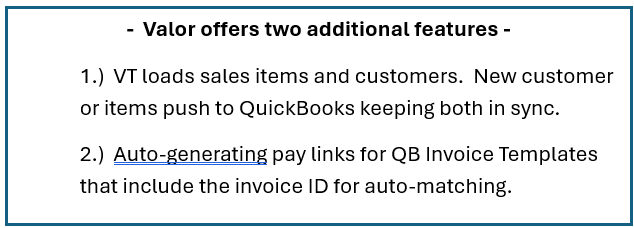
Two-Way Sync, matching, and Accounts Receivable - see QB part 2: BillerGenie & ChargeZoom
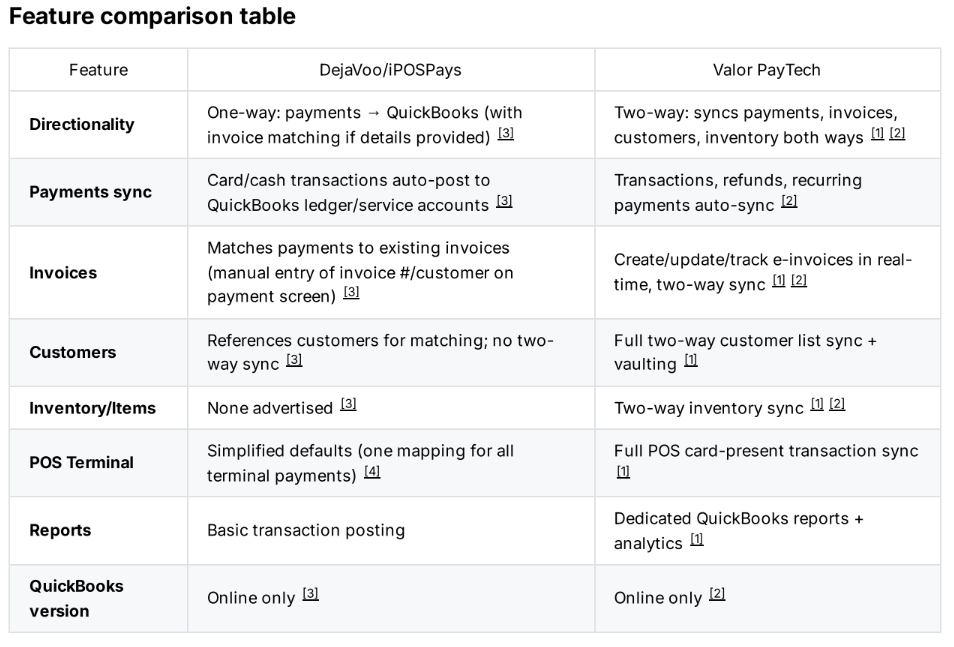
Valor wins on:
- True bi-directional sync eliminates data silos.
- Handles full business sync (not just payments).
- More automation for invoices/customers/inventory.
- Item details and checklists for qualifying level 3 interchange optimization.
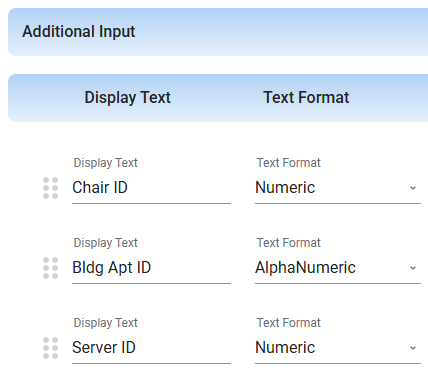
- Additional Inputs can be used to track sales and tips by servers, salon chair, even tenant apartments - building / unit number for invoicing, recurring, and late reminders.
DejaVoo wins on:
- Simpler setup for pure payments posting.
- Works well if you only need transaction ledger entries without full ERP sync.
- 3DS offered for more secure CNP payments.
Practical takeaway:
If itemized invoice creation, customer management, inventory tracking, or Level 3 matters, Valor is clearly superior. If you just want payments to hit your QuickBooks ledger reliably, DejaVoo does that job fine with lower complexity.
DETAILS: Valor Two-Way Sync - QuickBooks
(Integration is to QB Online only, Pay-links can be used with Desktop)
Valor Supports Surcharge, Dual Pricing (with or without ACH), and Cash
Creating a QuickBooks Invoice Template WITH Valor PayNow Link
DETAILS: DejaVoo / iPOSPays Sync - QuickBooks
(Integration is to QB Online only, Pay-links can be used with Desktop)
Link to QuickBooks Online. Open the iPOSPays Virtual Terminal. For Payment Ttype, choose Pinpad for card present, Pay now to use a stored card on file, or Send Payment Link to invoice.

At the bottom, enter (or lookup) the QuickBooks invoice number. The payment types above will now post to the associated invoice.
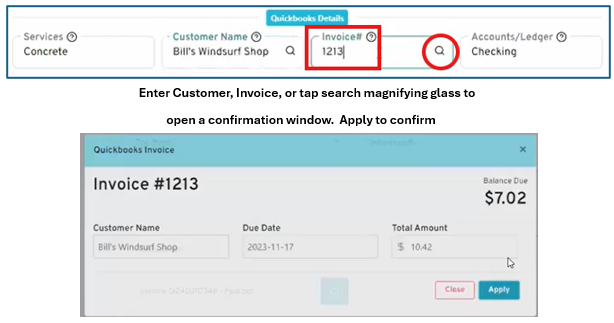
Send to Pinpad (terminal): for card-present EMV payments Supporting Surcharge and Dual Pricing
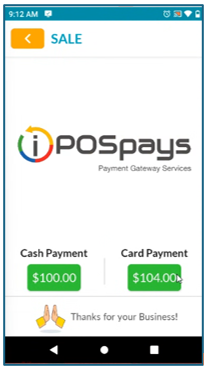
The DejaVoo iPOSPays is a payments‐to‐accounting sync: it pushes transactions into QuickBooks Online.
It supports automated posting and VT invoice matching (data manually entered), and account defaults for terminals. No two‐way catalog, inventory, or full customer syncing.
How to add a GENERIC Payment Link to QB INVOICES