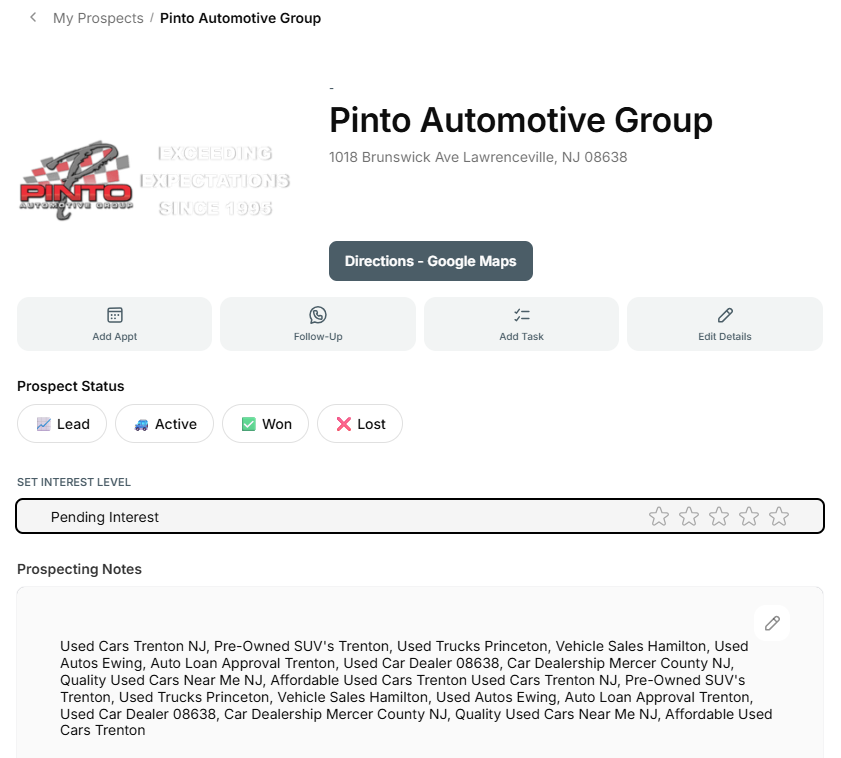
Scan a
Business Cards to Prospects
(in seconds)
There are two new options for quickly adding / importing new prospects: Business Card images and Dictation.
1. Simply take a photo of a business card (or upload an image) and the magic of Genie (AI) will take over. The results will be shown for you to edit as needed.
2. Optionally you may dictate the information written on a business card, a website, stationary, etc. The recording will be converted into text and applied to the proper entry fields to review or edit.
There is MORE ... Genie has an integration that will pull a logo and favicon from the prospect's website. You can choose between the two (or neither) before you add the new Prospect (& Contact). You'll now have a new Prospect with logo, a contact, and that contact assigned to the prospect as an employee with role.
Prospect business card Import (AI)
NEW: When you tap Add Prospect you'll see an Card Import option!
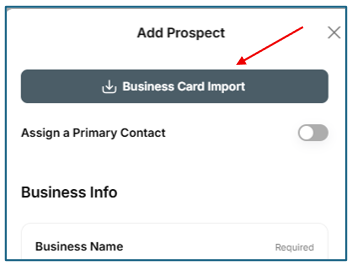
This offers two new ways to add Prospects from business cards or websites!
Choice of inputs: Take a picture or dictate business card details
Take or Import an Image Dictate info from card or Website
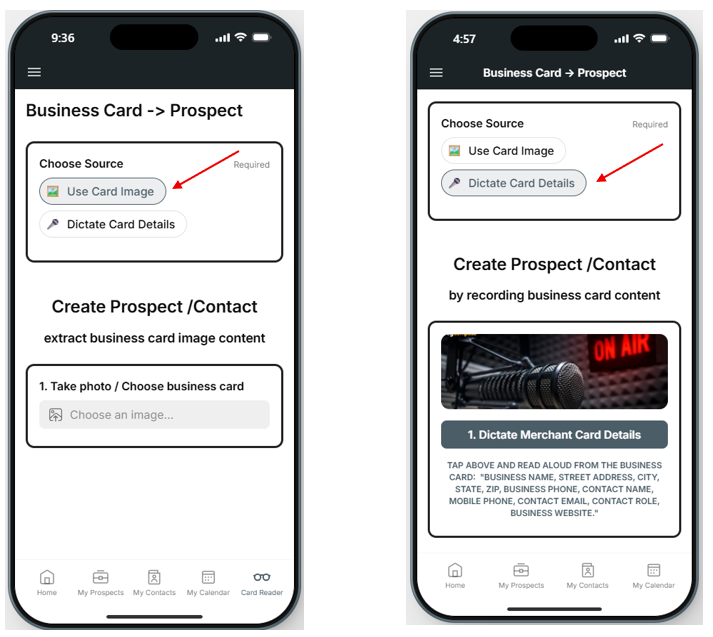
Devices (with cameras) offer the ability to take a picture, uploading an image from photos, or pasting an image URL. Just tap the Choose an Image button (#1).
Once an image has been selected, a thumbnail will show.
Tap #2 to Review/Edit details
(if there is an error loading the website images, tap Bypass Web Error instead)
Image uploaded Review/Edit Card Scan Details
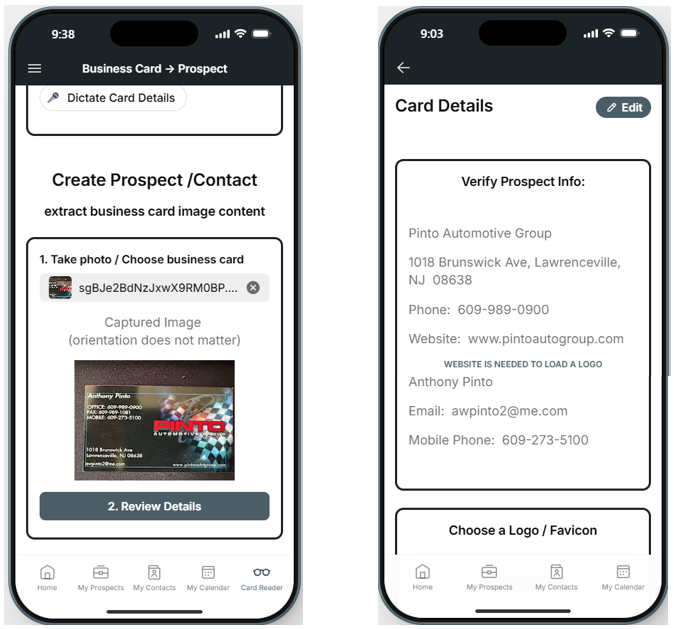
Tap Edit to correct any errors or add missing information.
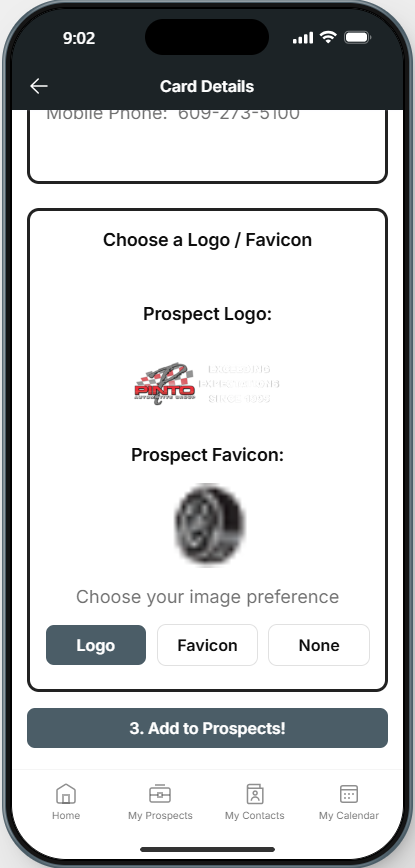
If a website (URL) was found (or added), the app will attempt to load a logo / image from the website.
The Genie App uses smart web technology …
When a website (URL) is provided, the app will attempt to collect the logo (and favicon) from the website for use as the Prospect image, and add website description to the prospect notes field.
If both image and favicon are available, a button block will allow you to select your image preference, or neither.
Favicons often have lower resolution than an image.
You can change an image later by editing the Prospect.
Once you have reviewed and updated your data and selected your image, Tap #3 to add the new Prospect!
Your new prospect will be created and linked to a contact, shown as an employee with role.
Prospecting notes will be populated with the web site description.