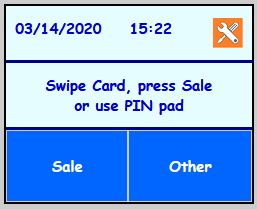
Download Steps for FirstData FD150
- Hold green button and press 4 key
- Password 990712
- Back to OS
- Download (enter password again)
- Select IP as Comm type
- Enter DID # and press enter
- Package = 1
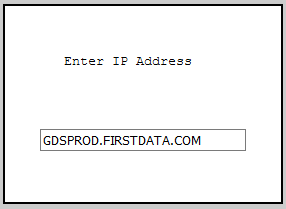
- Ip set to gdsprod.firstdata.com
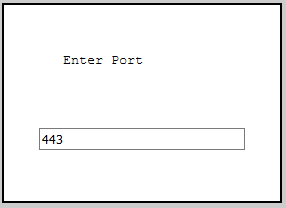
- Port set to 443
FD130 /150 Alternate Full Download
* Use this procedure to perform a full download on a terminal in which the memory has been cleared.
* To Edit touch the box and key in new value, or press ENTER 9 to toggle between two boxes.
Part 1: OS Update
Touch [1. Download ] |
| Use this procedure if the FD130 |
does not retain the TLS 1.2 | ||
Certificates after a memory | ||
clear. | ||
Part 1 downloads the TLS 1.2 | ||
firmware over dial | ||
Part 2 can then be performed | ||
over IP | ||
Touch [1. Port ] |
| Press Clear to backspace |
| ||
Touch [4. IP ] | ||
Key: | ||
| ||
GDSPROD.FIRSTDATA.COM | V = Alpha Alpha Alpha 8 | |
Key: 443 | C = Alpha Alpha Alpha 2 | |
Press Enter | . = Alpha Alpha Alpha 0 |
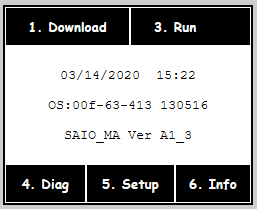
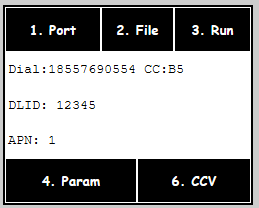
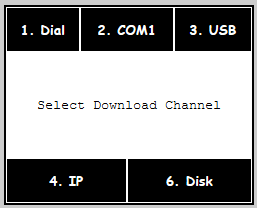
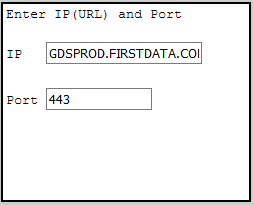
Touch [4. Save ] 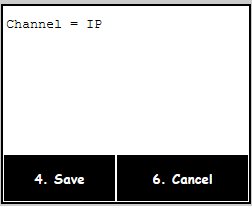
Touch [2. File ] 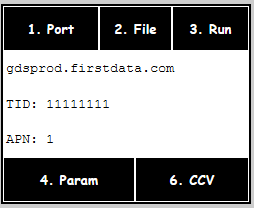
*Press Clear to backspace.
Key: [DLID] in TID: |
| **These values should be:** |
MID: Leave it blank | TID: is the DLID | |
APN: 0 | FName: | |
RKey: Leave it blank | FD130= GT2 or FD150= GT3 | |
Press Enter | ( G = Alpha 4 T = Alpha 8 ) | |
APN:0 | ||
Touch [3. Run ] |
|
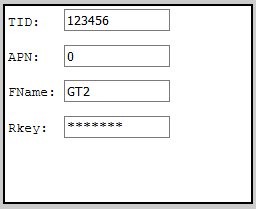
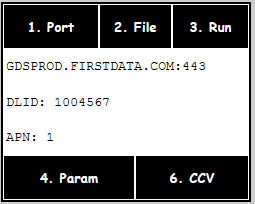
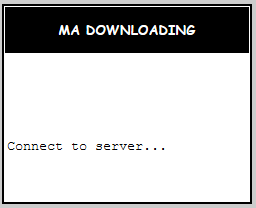
The terminal will connect to the |
| *If the backlight turns off, just | |
DL server. | |||
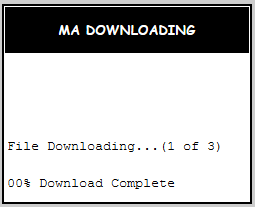
Once connected, the terminal |
| ||
will display | |||
File Downloading... | |||
As the download progresses | touch the screen to turn it | ||
each - will turn to a * | back on. | ||
This download will take | |||
approximately 1 minutes. | |||
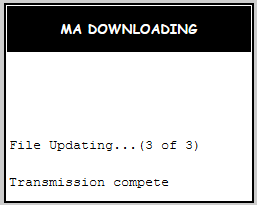
When finished the terminal will |
| Note: FD150: If you get a 'failed | |
display: | |||
to import rsa.dll library' error | |||
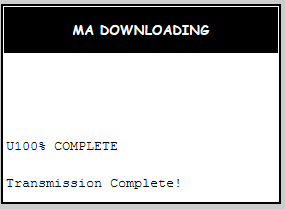
[Transmission Complete ] | |||
then please clear the memory | |||
Press Cancel 3 times | and retry Part 1 steps. | ||
Key [990712] |
| ||
Press Enter | |||
Or |

Reboot the terminal
Part 2: Full Download
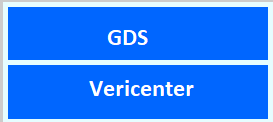
Touch [ GDS ] |
| This Part may be performed over | |
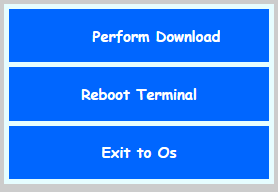
Touch [ Perform Download ] |
| ||
IP | |||
Key [990712] |
| ||
Press Enter | |||
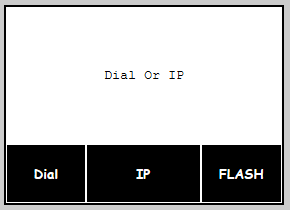
Touch [IP ] |
| ||
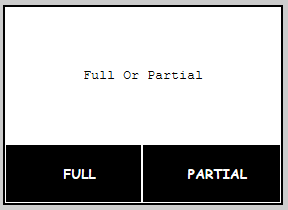
Touch [FULL ] |
|

Reset Key: Usually 10-Digits
CASES SENSITIVE
Key in the [ Retset Key ] |
| Note: If you need to switch |
between Upper and lowercase | ||
you will press the [Alpha & | ||
Enter] key at the same time. | ||
Press Enter | Note: RKey only required if | |
file manually 'Reset' or | ||
downloading pre-exising file | ||
on new equipment. | ||
Please NOTE Rkey is Case |
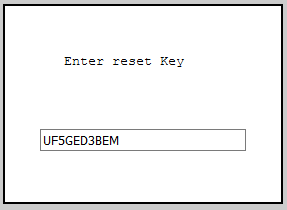
sensitive.
Key: [DLID] in TID: Press Enter Key: [ 1 ] |
|
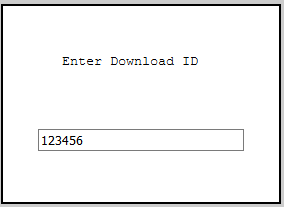
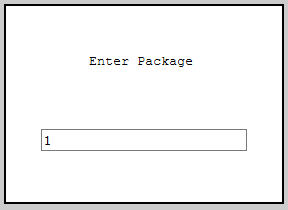
Key: |
| Download URL: |
GDSPROD.FIRSTDATA.COM | ||
Press Enter | GDSPROD.FIRSTDATA.COM | |
Key: 443 |
| Download URL: |
Press Enter | 443 | |
Terminal will connect out and |
| |
download the program when | ||
finished terminal will reboot | ||
into the main application. | ||
The terminal will connect to the |
| |
DL server. |
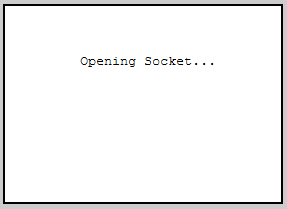
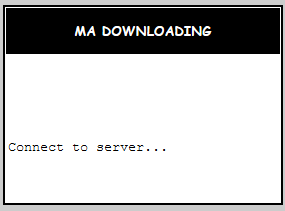
Once connected, the terminal will |
| *If the backlight turns off, just | |
display [00% Updating] | |||
This download will take | touch the screen to turn it back | ||
on. | |||
approximately 1 minute. | |||
Download is finished when you |
| ||
see [ Transmission Complete! ] | |||
Press [ Cancel ] 3 times | |||
Key [990712] |
| ||
Press Enter | |||
Press [ Enter ] for QRG printout |
| ||
or Press [0] to bypass printout | |||
Terminal will display main |
| ||
screen. |
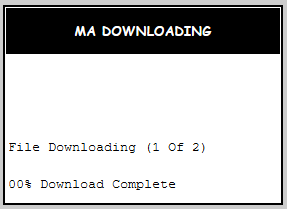

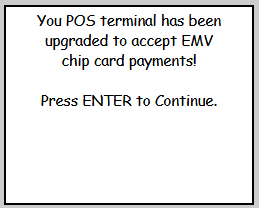
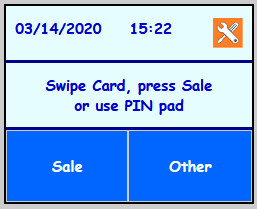
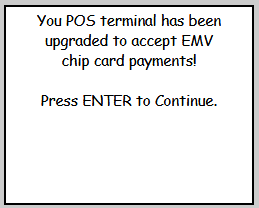
***If CAPK Needs to be updated the following will appear.***
***CAKP update should start automatically.***
***Wait for the terminal to finish the download.***
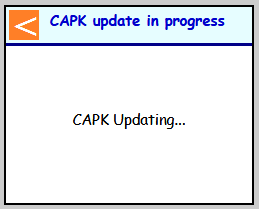
***Terminal will INIT several CAPK's.*** |
|
EMV INITIALIZATION COMPLETE |
Press [ Enter ] for QRG printout or Press [0] to bypass printout
***Terminal will print a quick ref guide for EMV and go back to
main screen. ***
Application Help Processing.... |