
RCKT VP100 Pro Mobile POS | valorpaytech.com valorpaytech.com |
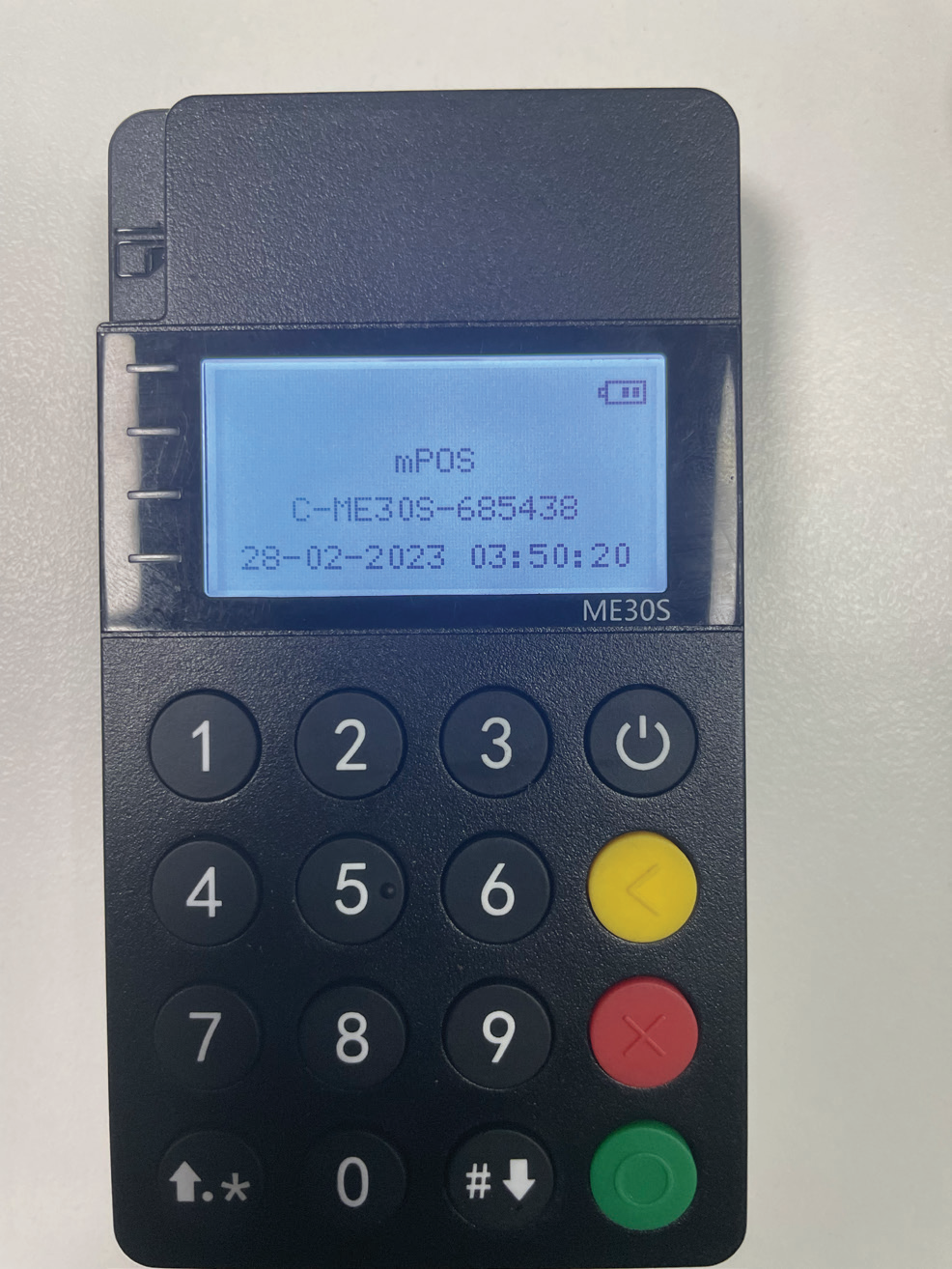
Connecting the RCKT to your Smartphone
1. Press and hold the Power icon to turn on the device.
2. If powered on fully the screen will read like the example above
3. Open the ValorPay App on your smartphone.
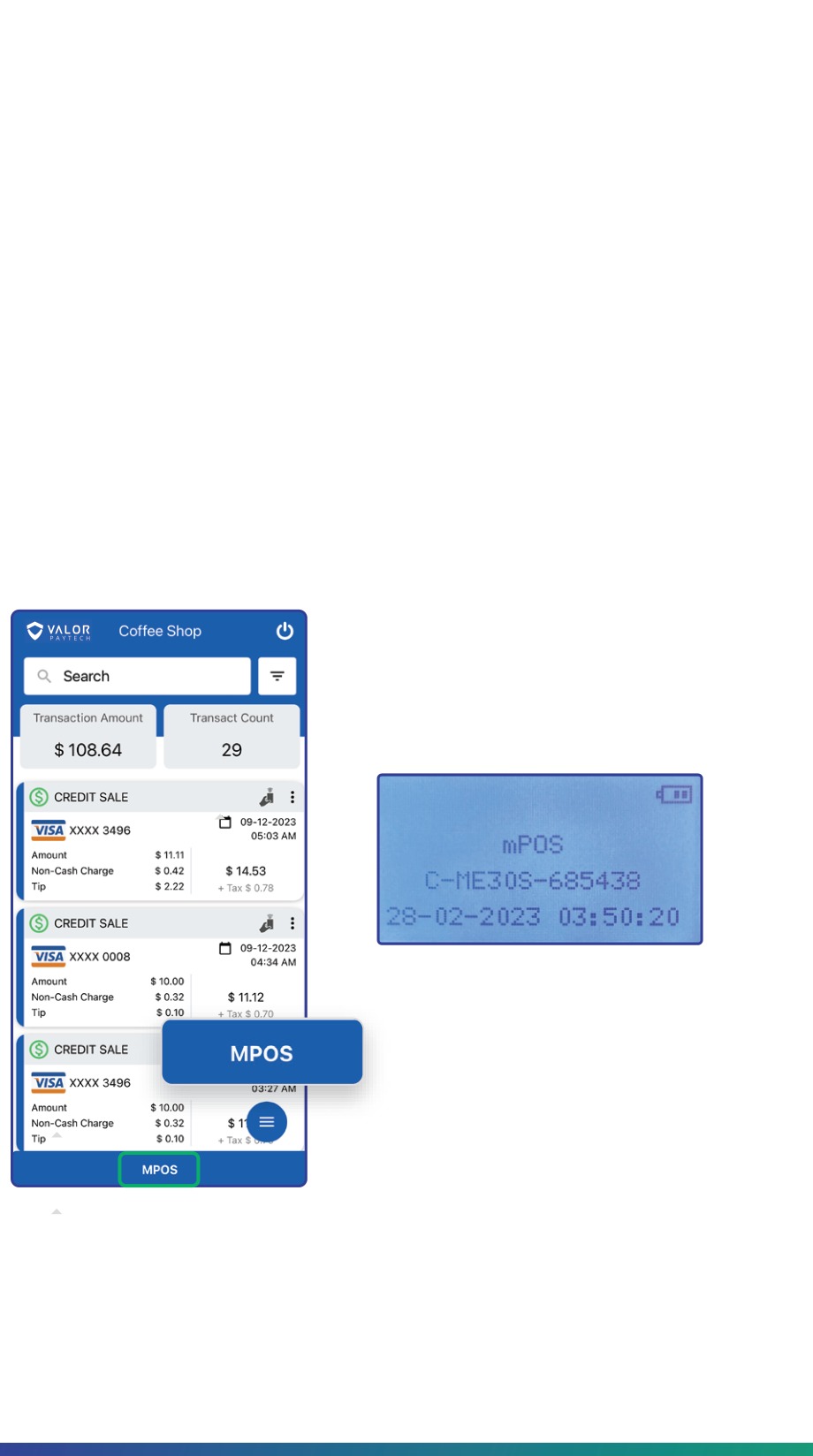
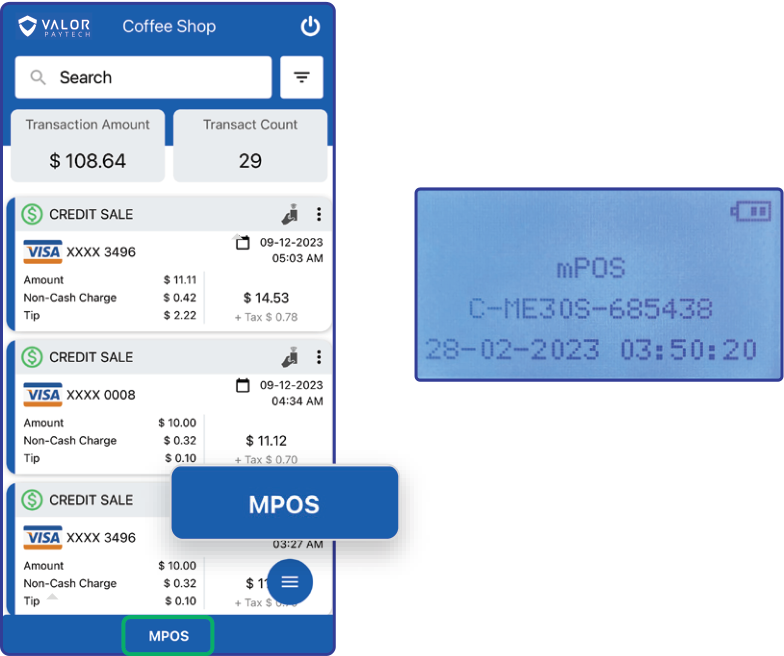
4. Select the Banner at the bottom of the screen labeled MPOS.
5. Select the Device that identically matches your C-ME30S-685xxx number.
6. Select Pair to connect your smartphone with the RCKT Mobile POS via Bluetooth.
7. Once your specific endpoint identifier is loaded, you're ready to start accepting payments.
Accepting Payments
1. Your ValorPay App Home screen displays MERCHANT NAME | RCKT NAME | CREDIT | SALE buttons.
2. Tap CREDIT to select the type of Payment Form being used from the dropdown menu:
CREDIT | DEBIT | EBT FOOD | EBT CASH | CASH.
3. Tap SALE to select the Transaction Type to be
processed from the dropdown menu:
SALE | VOID | AUTH | TICKET | REFUND | PRESALE.
4. Then enter the Transaction Amount followed by the customer's Email Address and Mobile Number.
5. Press the right Arrow located in the top right corner to continue.
6. A prompt in the ValorPay App as well as on the RCKT Mobile POS instructs you or the customer to Please Insert or Tap the Card.
7. The RCKT Mobile POS beeps once after a payment card is swiped, dipped or tapped indicating it was read correctly.
RCKT Mobile POS | R1.08282024 | valorpaytech.com

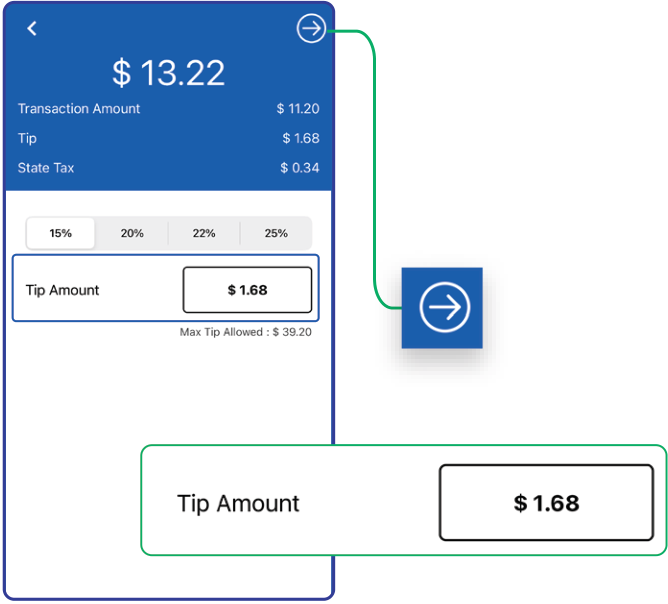
8. If Tipping has been activated, select one of the Smart Tip options shown or enter a custom Tip Amount on the ValorPay App and press the right Arrow in the top
right corner.
9. If Cash Discounting has been activated, the adjusted Sale Amount is displayed.
10.If Surcharging has been activated, a Non-Cash Charge Amount is displayed which your customer must approve by tapping the Checkbox.
11. If Dual Processing has been activated, Credit | EBT | Cash pricing options are displayed for your customer to select from.
12. To review the Transaction as entered, select the right Arrow in the top right corner of the ValorPay App.
13. Use the Back Arrow in the upper left corner of the ValorPayApp to fix any errors.
14.When ready to complete the payment transaction, tap PAY. Approved is displayed on the ValorPay App and RCKT Mobile POS screens when done. Receipts are emailed and/or sent to customers via SMS text message.
Transactional Flow
1. Select the MPOS Banner from the bottom of the ValorPay App.
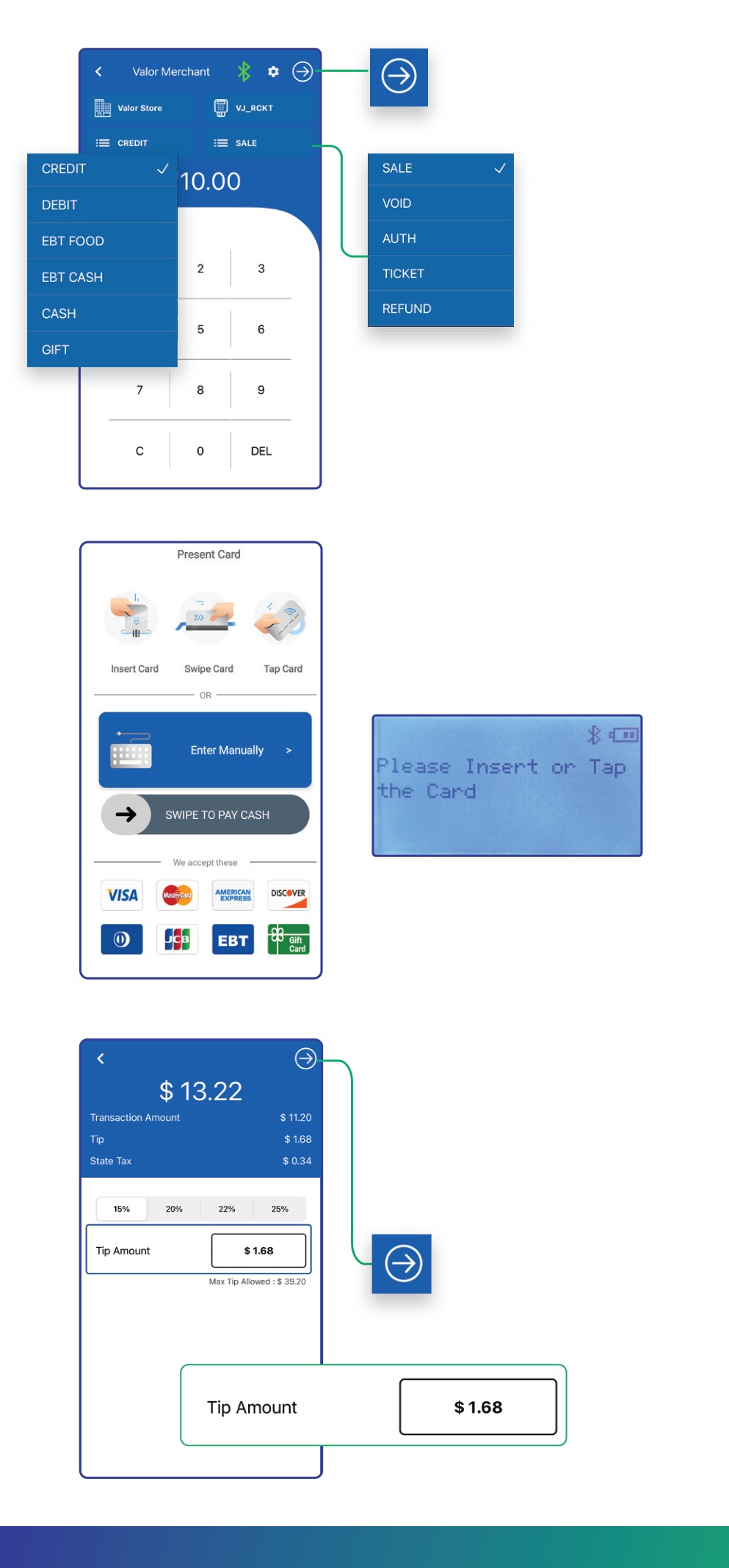
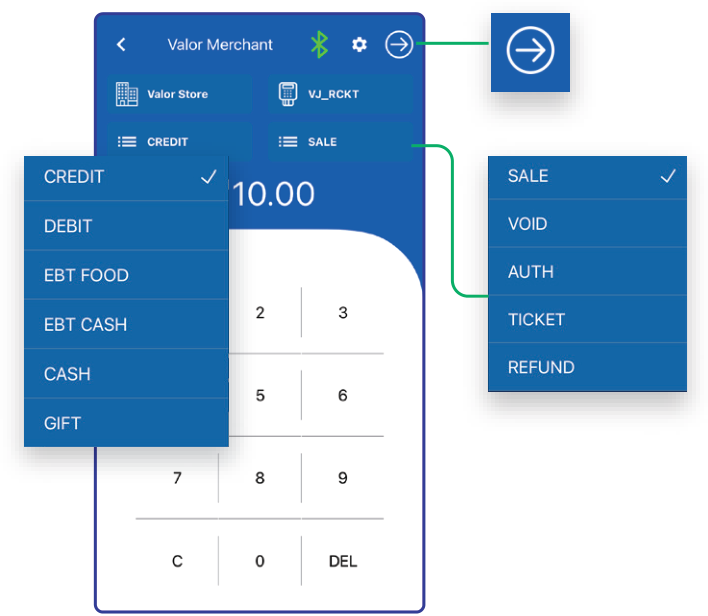





2.Select the Payment Form and Transaction Type from the dropdown menus. Then press the right Arrow located in the top right corner to continue.
3. Swipe, insert or tap the payment card using the RCKT Mobile POS.
4. Select or enter the Tip Amount. Press the right Arrow in the top right corner to continue.
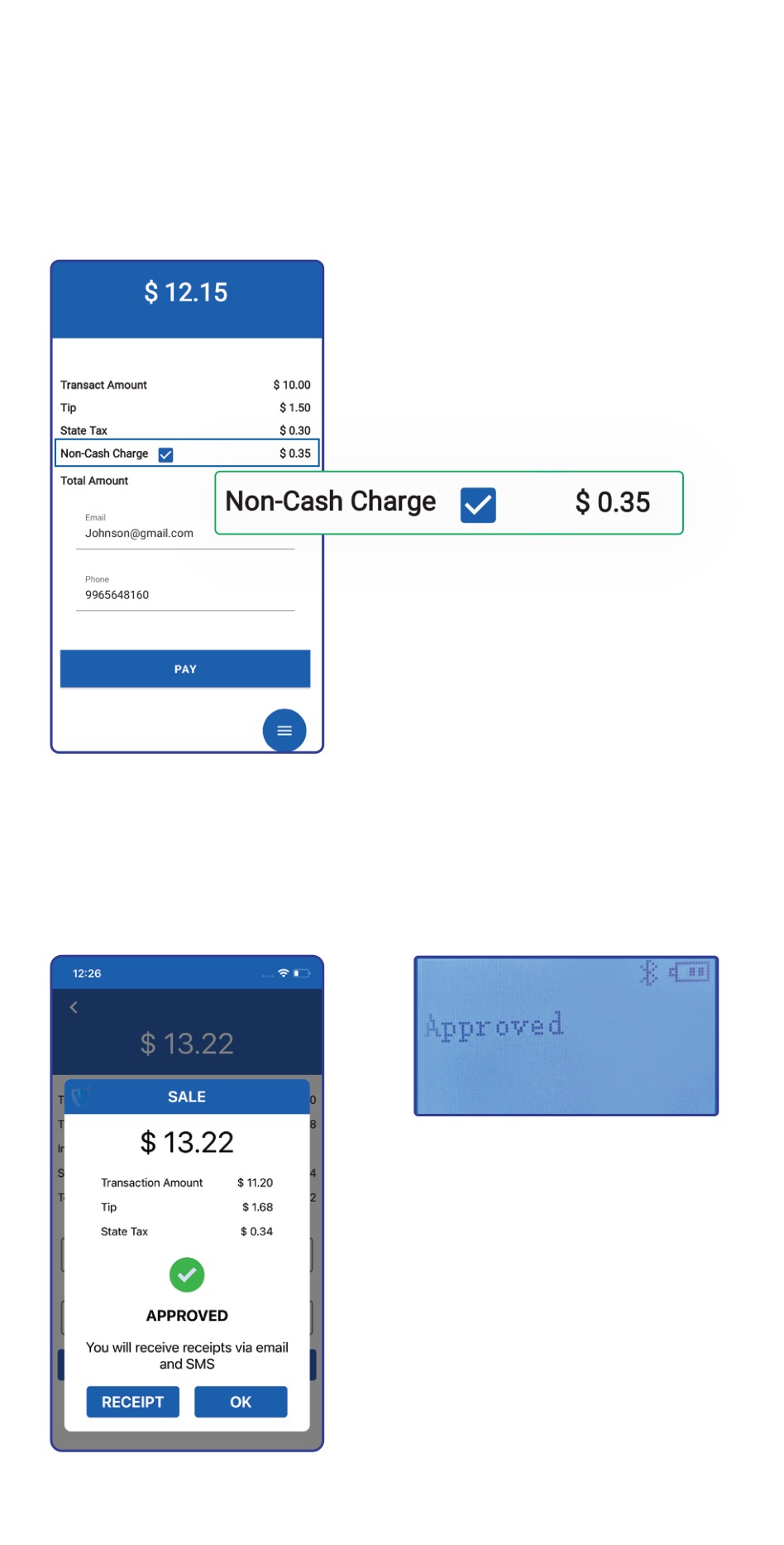
5. For Surcharging, accept the Non-Cash Charge Amount by tapping the Checkbox. Then select PAY to complete the transaction.
6.Approved is displayed on the ValorPay App and RCKT Mobile POS screens when done.