
Step 1 |
Step 2Sign in to MxConnect
|
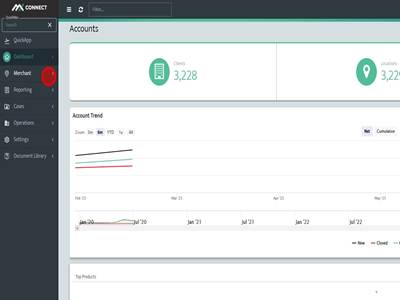
Step 3Click "Merchant"
|
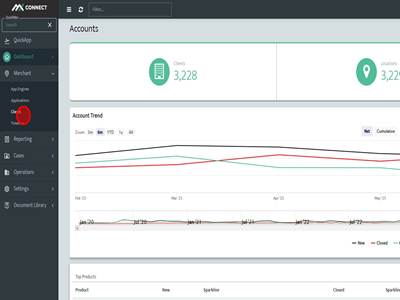
Step 4Click "Clients"
|
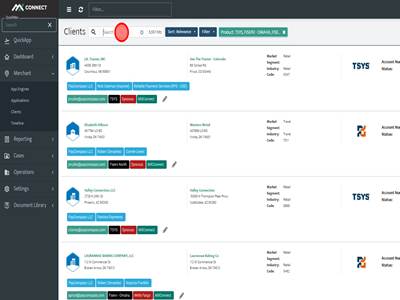
Step 5Search for merchant you want to add MxMerchant users to
|
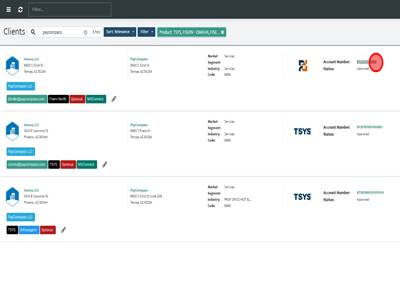
Step 6Click on the Account Number or DBA of the account
|
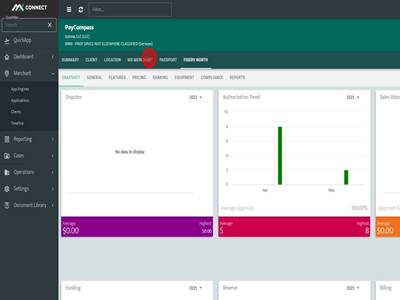
Step 7Click "MX MERCHANT"
|
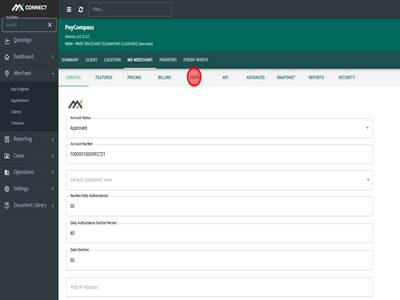
Step 8Click "USERS"
|
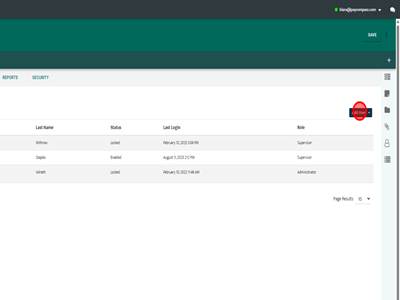
Step 9Click "Add User"
|
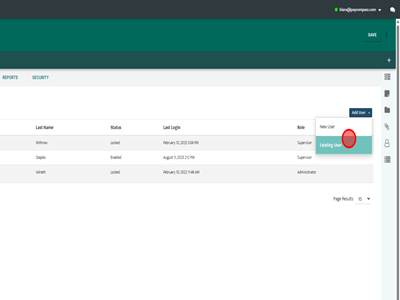
Step 10Click "Existing User" to add a user that already has an MxMerchant account created.
|
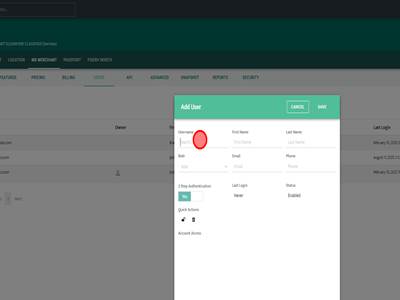
Step 11Input the username of the existing user you would like to add. This is typically the email of the user.
|
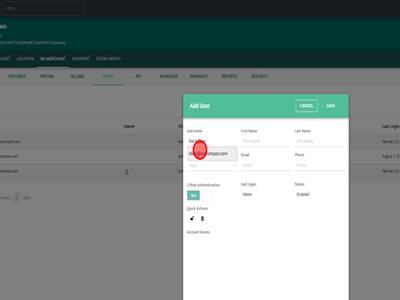
Step 12The username will populate in a dropdown box. Click on the username of the account you would like to add.
|
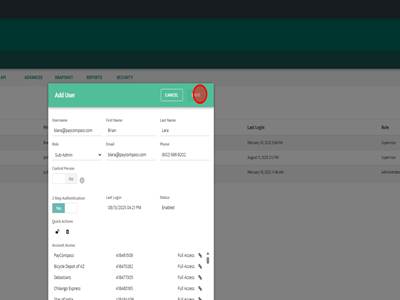
Step 13This will autofill the other fields that are required with the relevant information from the user's account. Make sure the user's role is set appropriately and then hit save to finish adding the existing user.
|
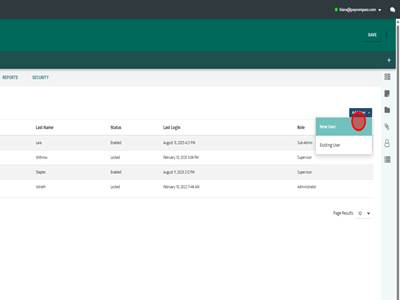
Step 14To add a new user click "Add User"
|
Step 15Click "New User"
|
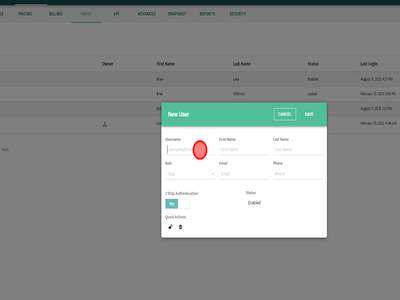
Step 16Input the new users username. This is typically the email of the user.
|
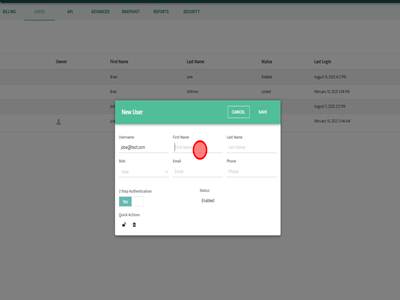
Step 17Enter First Name of user
|
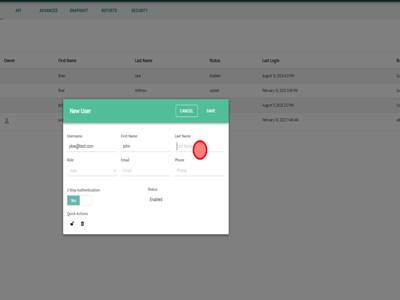
Step 18Enter Last name of user
|
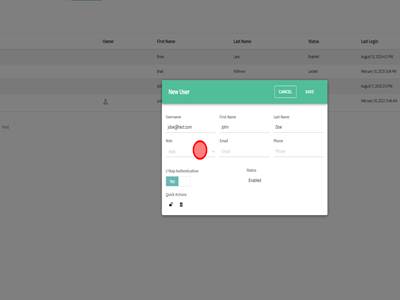
Step 19Choose the role the user will have. Usually this is put as Sub-Admin.
|
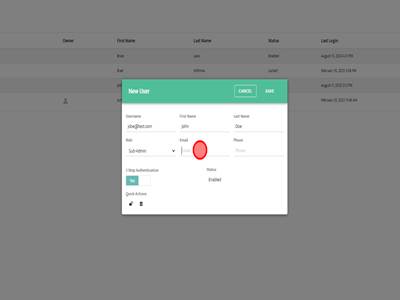
Step 20Enter the user's email into the Email field.
|
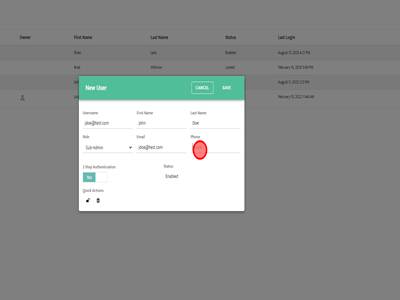
Step 21Enter the user's phone number, this will be used for 2FA.
|
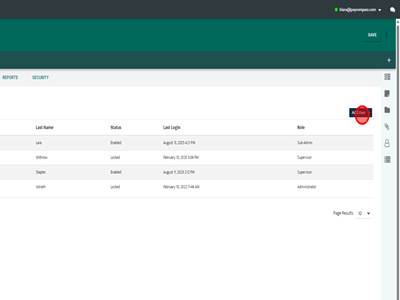
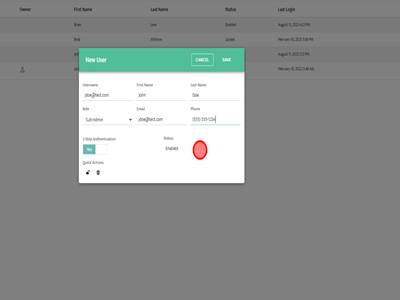
Step 22Click "SAVE" to save this new user and add them to the MxMerchant of the account.
|
How to add MX Merchant Users Print
Modified on: Fri, 24 Jul, 2026 at 4:39 AM

Did you find it helpful? Yes No
Send feedbackSorry we couldn't be helpful. Help us improve this article with your feedback.