
Step 1 |
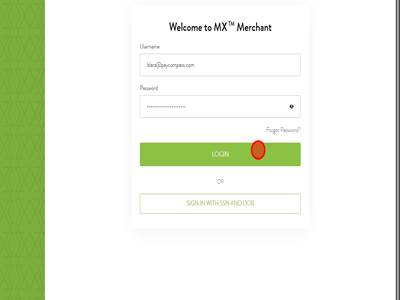
Step 2First you will need to ensure you have been added to the Merchant's MxMerchant, if you have not please reach out and we can add you. Once you have been added. Login to MxMerchant.
|
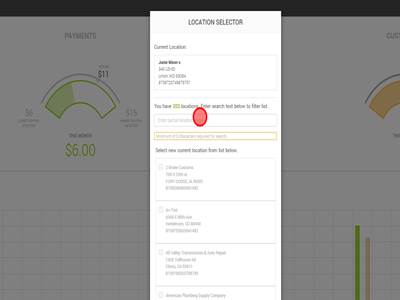
Step 3Search for the MID you need to activate PCI compliance for.
|
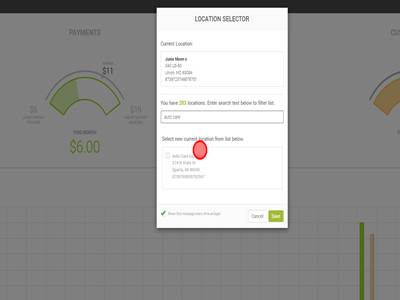
Step 4Select the MID you are looking for.
|
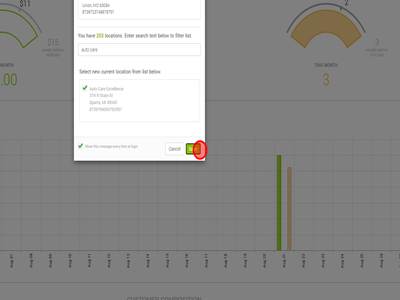
Step 5Click "Save"
|
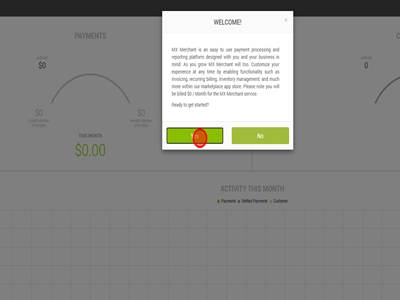
Step 6Click "Yes" if you see this popup. This is a popup that appears when MxMerchant is first logged into.
|
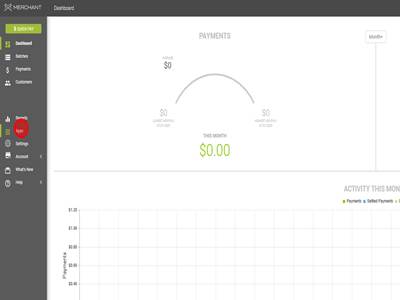
Step 7Click "Apps"
|
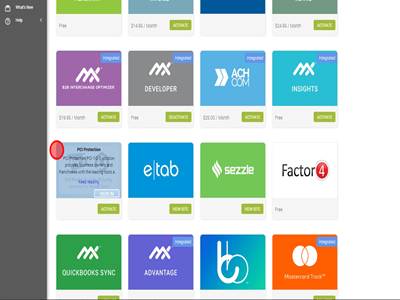
Step 8Click "PCI Protection". There is a "Sign in" and "Activate" button, when first activating PCI compliance for a merchant we will need to select "Activate". If activate is not selected, the MID may not be activated and we get an unknown MID error later on.
|
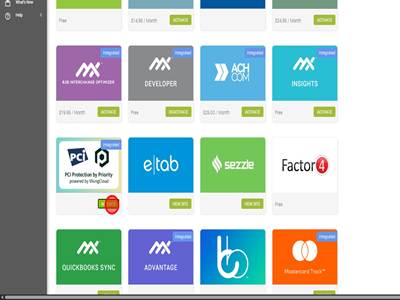
Step 9Click "ACTIVATE"
|
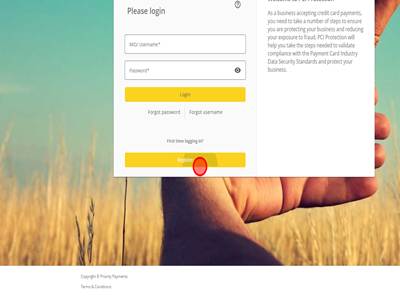
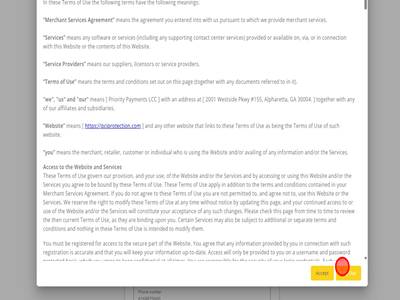
Step 10This will take you to pciprotection.com. This is the website where PCI compliance is completed. Since we are activating PCI compliance for a merchant for the first time, we will hit "Register".
|
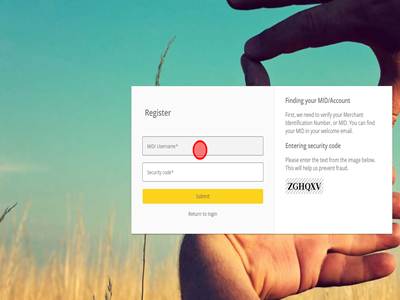
Step 11You will use the MID to register.
|
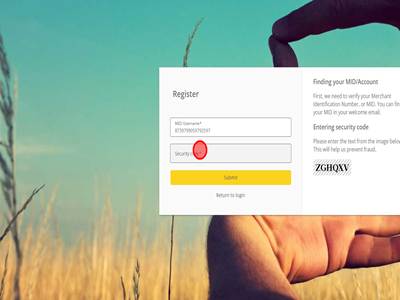
Step 12You will enter the security code on the right side of the screen.
|
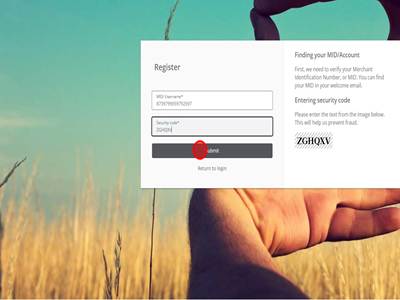
Step 13Click Submit
|
Step 14This will activate the merchant's PCI compliance and ensure they are able to login and become compliant. After this the merchant will finish creating an account and then they can take the PCI questionnaire and complete scans if necessary.
|
Activating PCI Compliance for a merchant through MX Merchant Print
Modified on: Fri, 24 Jul, 2026 at 4:44 AM
Did you find it helpful? Yes No
Send feedbackSorry we couldn't be helpful. Help us improve this article with your feedback.