
Step 1 |
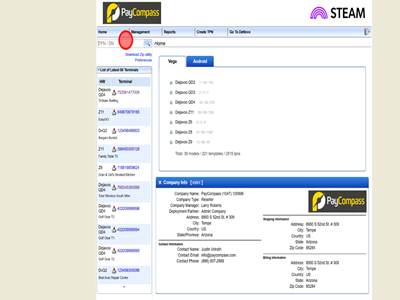
Step 2First you will login to Steam then you will search for the TPN you are duplicating.
|
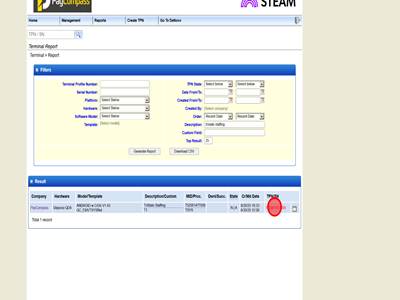
Step 3Click the TPN of the terminal you are searching for.
|
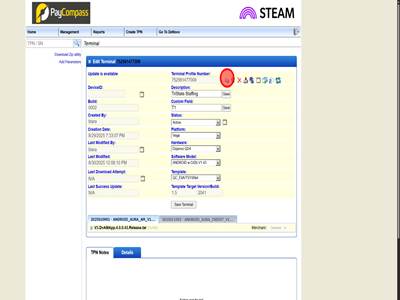
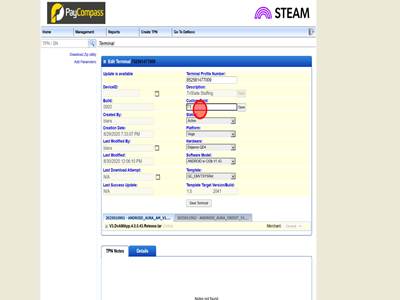
Step 4First you will copy the TPN of the original terminal. Then you will hit the icon to the right of the TPN. This is the duplicate file button.
|
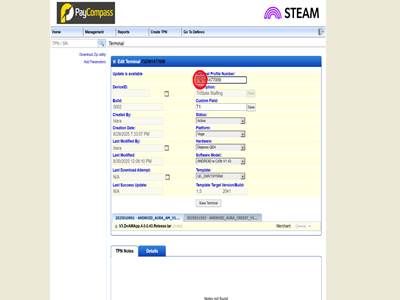
Step 5You will paste the original TPN and then increment the first number of the TPN by one. In this case we will change the first number from 7 to 8. We do this because it cannot be the same as the previous TPN and if we increment that last number, it may be possible for another merchant to need that TPN. This is unlikely though.
|
Step 6After that we will increment the terminal number as well. In this case it will go from T1 to T2.
|
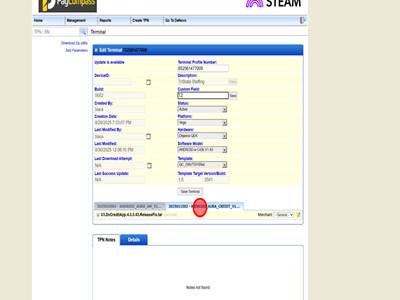
Step 7Click the Credit/Debit app
|
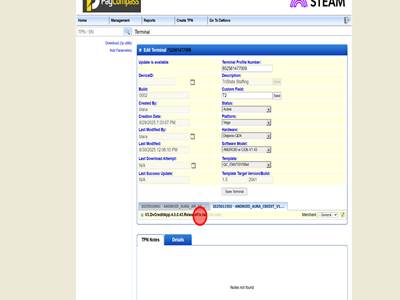
Step 8Click "V3.DvCreditApp.4.0.0.43.ReleaseFix.tar (DvCredit)"
|
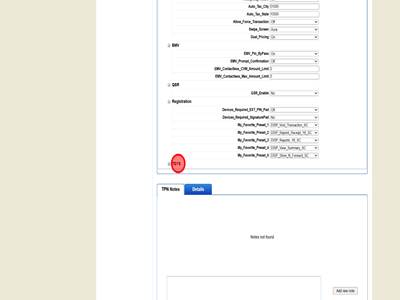
Step 9First ensure that all the parameters copied over properly. Then click "TSYS"
|
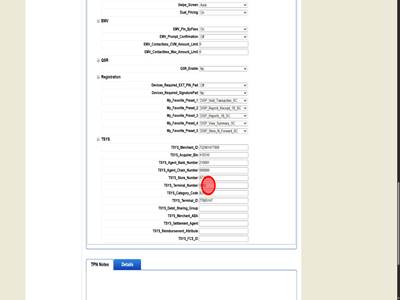
Step 10After duplicating a file, we usually just need to update the TSYS tab with new VAR information.
|
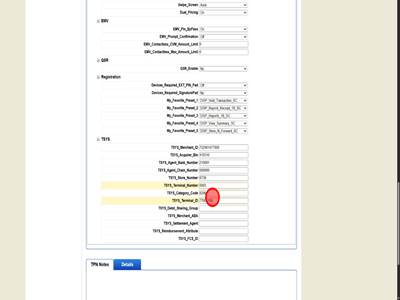
Step 11Typically, we will only need to change the Terminal Number and Terminal ID. However you should still ensure that the rest of the information matches the new VAR information and there is no unnecessary spaces.
|
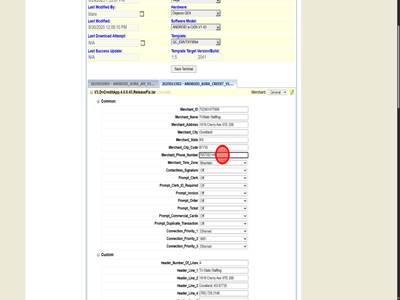
Step 12You will also want to ensure the Common tab matches what is on the VAR and has no unnecessary spaces.
|
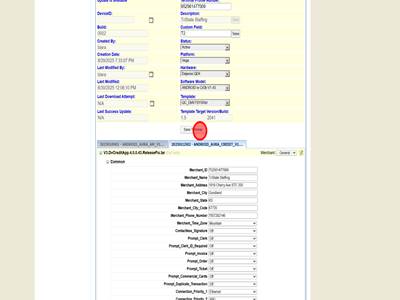
Step 13After you have confirmed the TSYS and Common tab are correct. You can save the terminal and you have now duplicated a TPN.
|
How to duplicate a file in Steam Print
Modified on: Fri, 24 Jul, 2026 at 5:14 AM
Did you find it helpful? Yes No
Send feedbackSorry we couldn't be helpful. Help us improve this article with your feedback.