
Step 1Visit https://portal.ipospays.com/merchant-management/list-merchant |
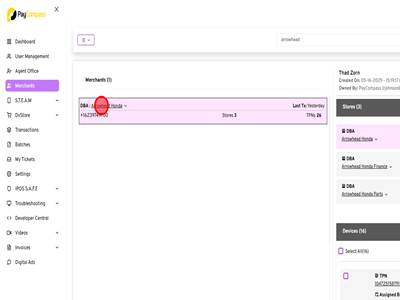
Step 2Click "Arrowhead Honda"
|
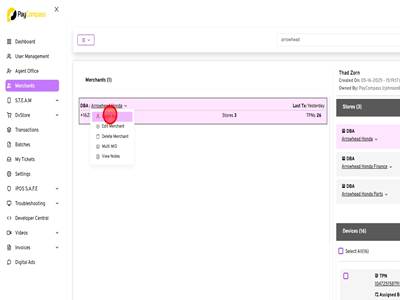
Step 3Click "Login As" text
|
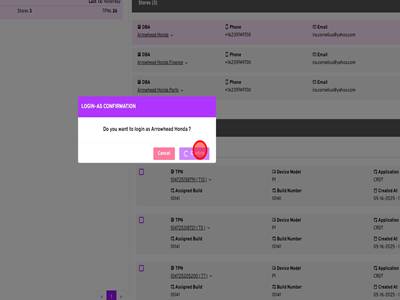
Step 4Click "Confirm" button
|
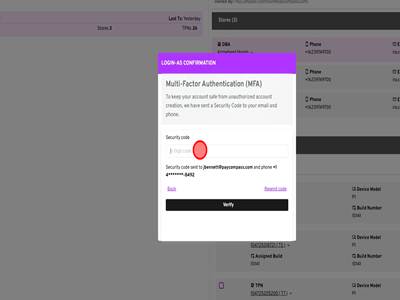
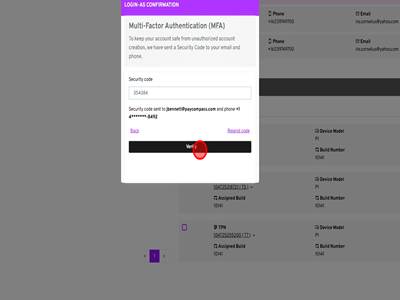
Step 5Click input field
|
Step 6Click "Verify" button
|
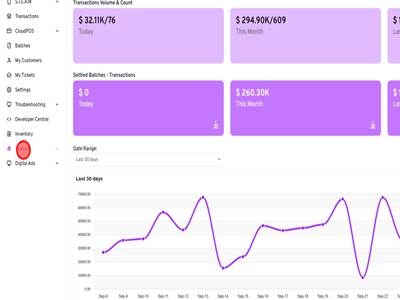
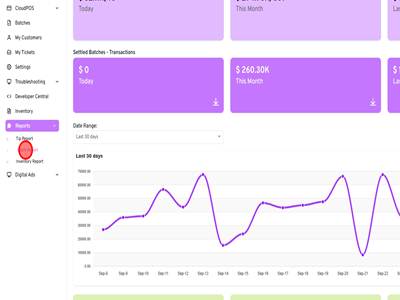
Step 7Click "Reports" text
|
Step 8Click "Batch Report" link
|
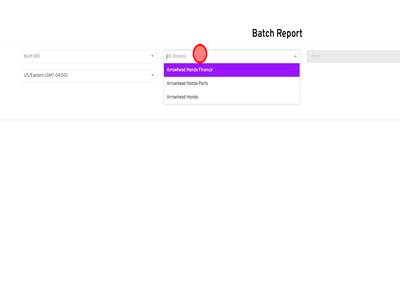
Step 9Click input field
|
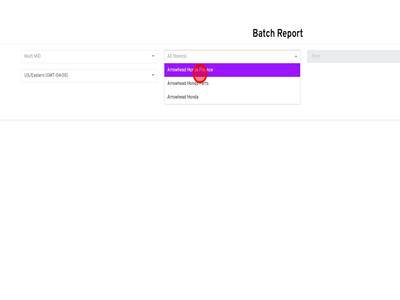
Step 10Click "Arrowhead Honda Finance"
|
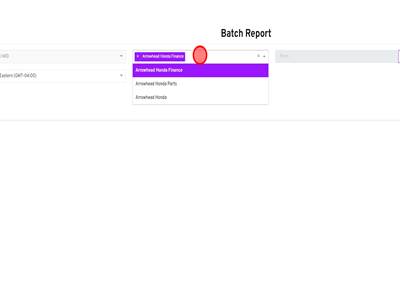
Step 11Click input field
|
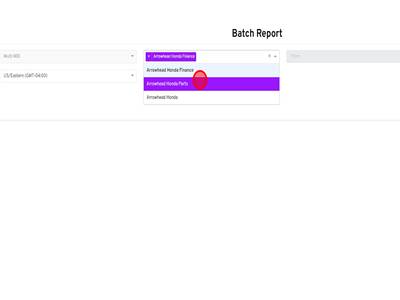
Step 12Click "Arrowhead Honda Parts"
|
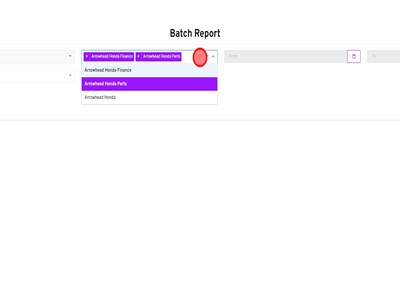
Step 13Click input field
|
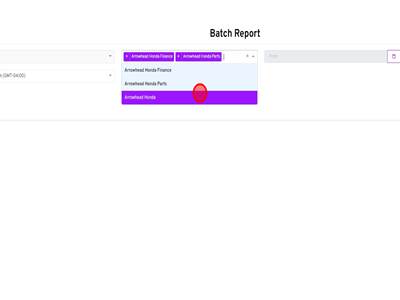
Step 14Click "Arrowhead Honda"
|
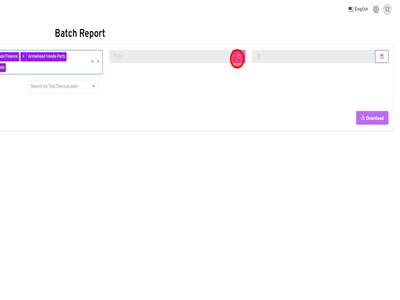
Step 15Click button
|
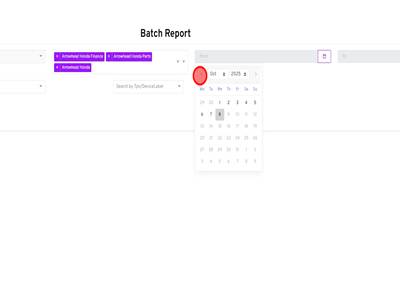
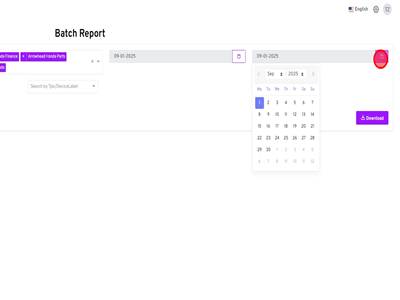
Step 16Click button
|
Step 17Click "1"
|
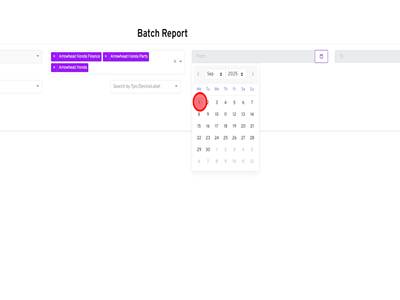
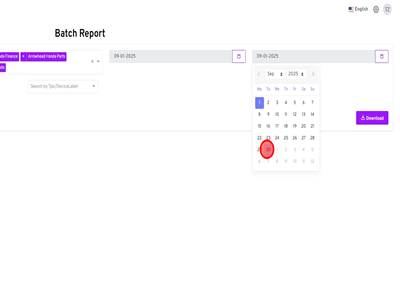
Step 18Click button
|
Step 19Click "30"
|
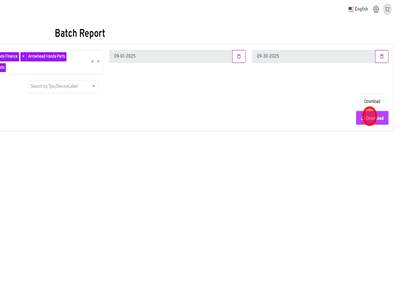
Step 20Click " Download" button
|
IPOS - Pull Batch Report as Merchant in iPOSPay Print
Modified on: Fri, 24 Jul, 2026 at 5:40 AM
Did you find it helpful? Yes No
Send feedbackSorry we couldn't be helpful. Help us improve this article with your feedback.