1 | Step 1 |
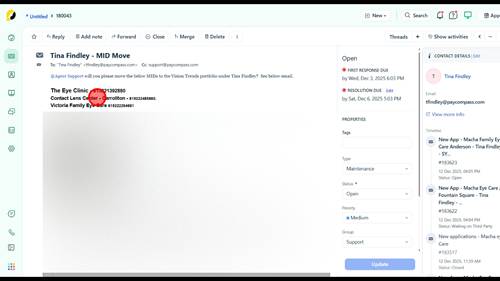
When doing a MID Move, the first thing you will need to do is download the MID Move excel spreadsheet. Once downloaded, open the MID move ticket in freshdesk. | |
2 | Step 2 |
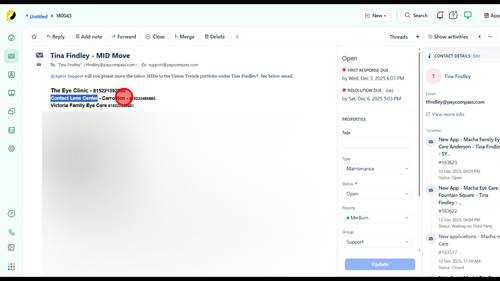
Copy the Merchant name of the merchant(s) needing to be moved. Paste the names into the "Merchant Name" column on the spreadsheet. | |
3 | Step 3 |
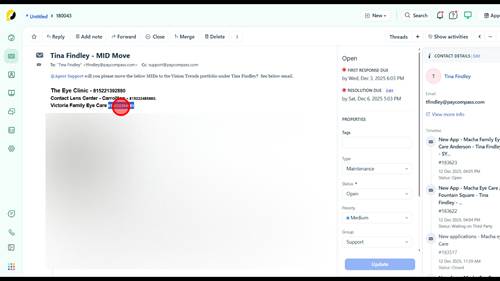
Copy the Merchant IDs of the merchant(s) needing to be moved. Paste the IDs into the "Merchant ID" column on the spreadsheet. | |
4 | Step 4 |
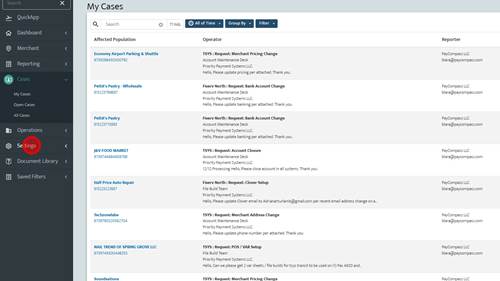
Once the "Merchant Information" has been filled out on the spreadsheet, you will login to MxConnect. Then you will Click 'Settings'. | |
5 | Step 5 |
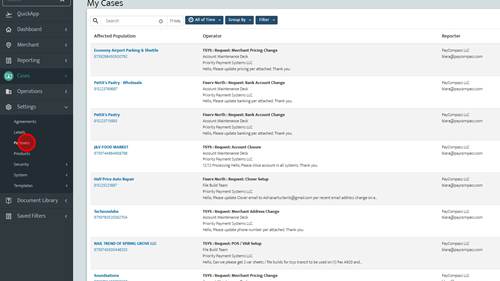
Then you will click 'Partners'. | |
6 | Step 6 |
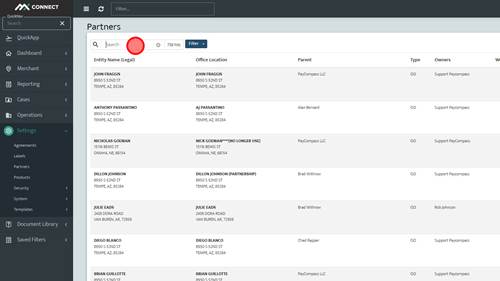
The next section on the spreadsheet is "Origin". This is the Partner the account is being moved from. You will search up the name of the "Origin" Partner. | |
7 | Step 7 |
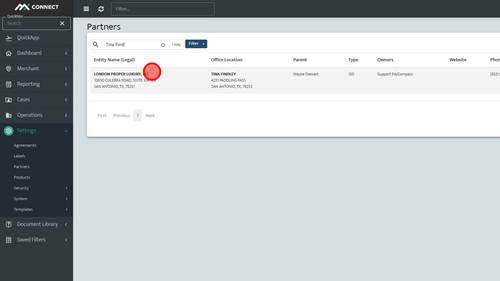
Once you have pulled up the "Origin" Partner, you will click on the partner to view the details. | |
8 | Step 8 |
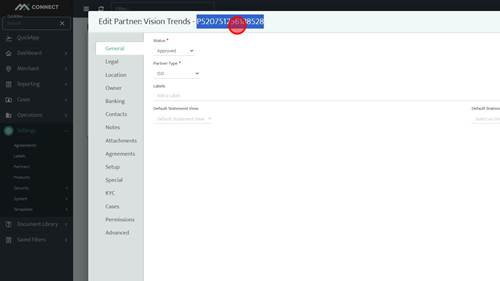
Then you will copy the Entity Name of the Partner and paste that into the "Origin Partner Name" column on the spreadsheet. | |
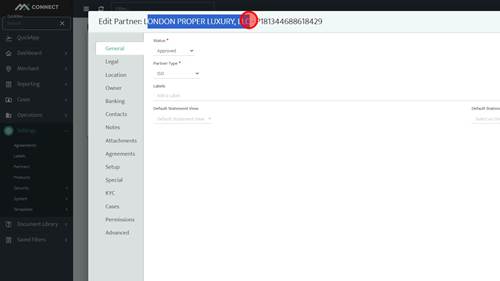
9 | Step 9 |
After you have done that, you will copy the "Origin Partner Number" and paste this into the "Origin Partner Number" column on the spreadsheet. | |
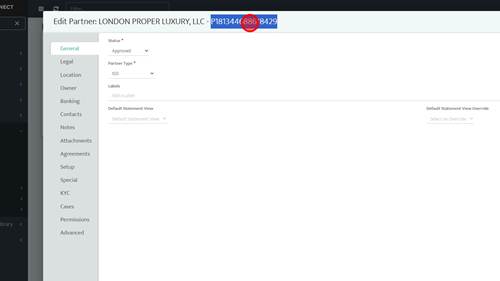
10 | Step 10 |
The final section on the spreadsheet is the "Destination" partner. This is the account that the MID(s) are being moved to. You will search up the name of the "Destination" partner. | |
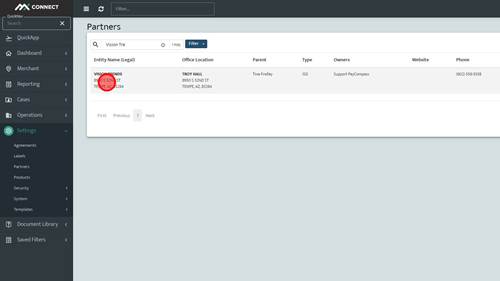
11 | Step 11 |
Once you have pulled up the "Destination" partner, you will click on the partner to view the details and copy the Partner name. You will then paste this into the "Destination Partner Name" column on the spreadsheet. | |
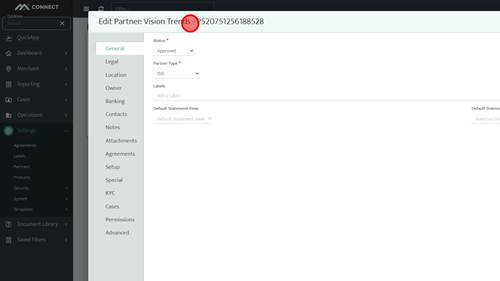
12 | Step 12 |
You will then copy the partner number of the "Destination" partner. Then you will paste this into the "Destination Partner Number" column on the spreadsheet. After the spreadsheet is filled out you will email this to partnercare@prth.com with tanesha.lafleur@prth.com CC'd. | |