
Linking Genie entries to FreshDesk Articles:
Create the collateral in FreshDesk, add the TAG 'Genie-Linkable, save and publish.
Note the article number and title
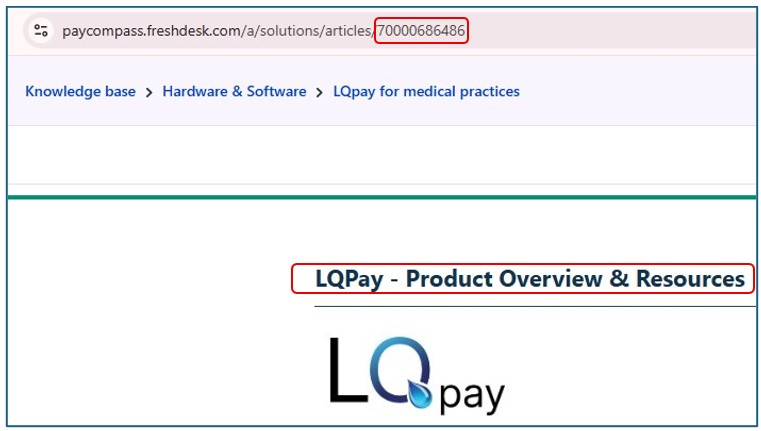
Next, open Genie and tap Utilities, Manage Freshdesk Articles.
You can search for an existing article (recommended to avoid duplicates), or add a new one.
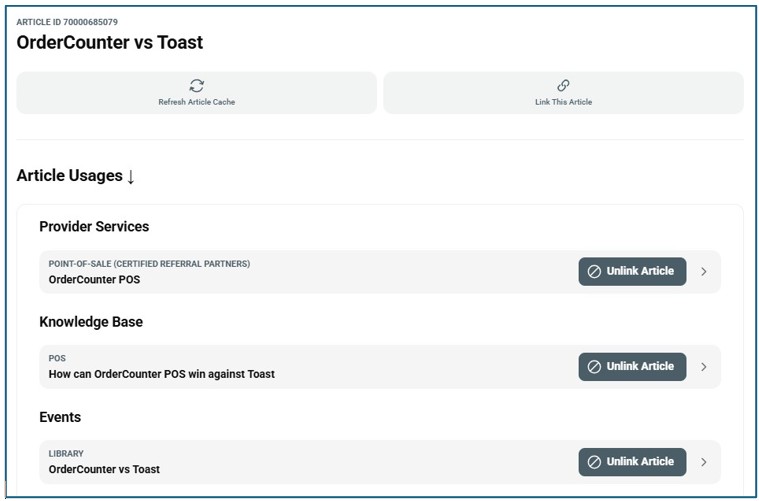
In the example below, I see that there is already an LQ article name and ID present.

Tap that line to see what it is linked to (or add additional links).
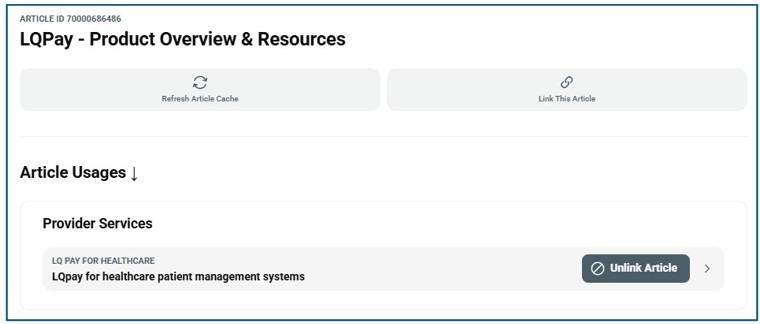
In this example, this OrderCounter article is linmed to three different Genie entries and offers 3 options.
- Refresh the article (when changes are made in FreshDesk).
- Link this article to another entry within Genie
- Unlink a previously linked entry in Genie.
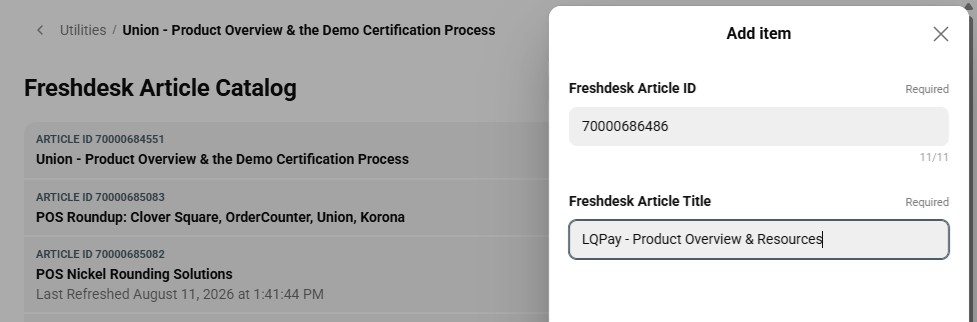
To add a new Freshdesk article, tap add and copy and paste the FD ID and title, then save. This will add the article to the catalog in Genie.
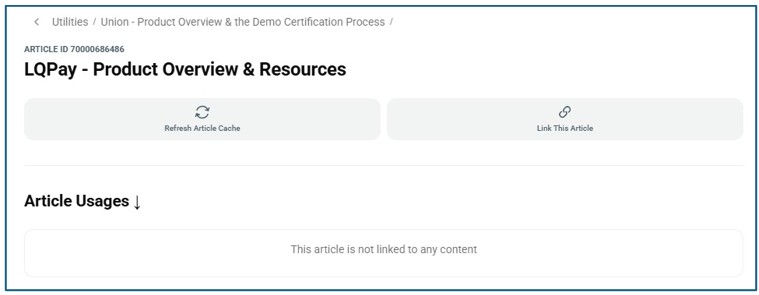
You will now see that article listed. Notice that there are no links yet under Usages. Tap Link to connect one.
Next, select the section within Genie that you want to link to using the dropdown list. LQPay lives within the Provider Services (Software) table.
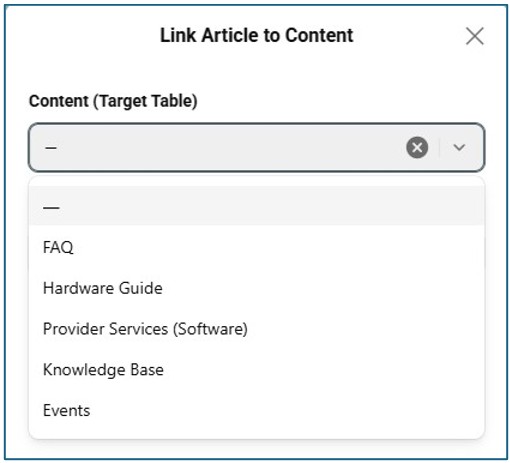
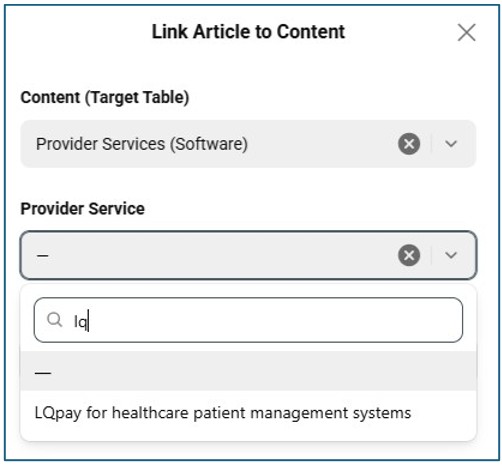
Next search for the Genie entry that you want to list this FreshDesk article to. Notice that a list of matching entries lists below.
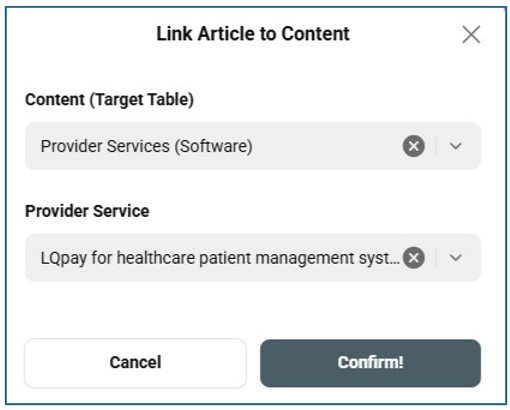
Confim or cancel your choices.
Your Freshdesk article and linked Genie entries are now complete.
NOTE: New or refreshed links can take up to 30 seconds to loade into Genie if the API was sleeping.
End linking Freshdesk to Genie.